
You remove the awkward pauses from a screen recording. Then you remove a repeated sentence, shorten the introduction, and speed up a few slow sections.
The video is now shorter. Unfortunately, the instructions are harder to follow.
A menu appears and disappears before the viewer can read it. The narration mentions a setting after the cursor has already moved away. The finished result flashes on screen just before the next topic begins.
The problem is not necessarily the amount of information. It is where the video gives viewers time—and where it takes that time away.
A useful editing question is: What does the viewer need to understand during these seconds?
If the answer is “nothing new,” a cut may help. If the viewer is locating a control, comparing two options, or checking a result, those seconds may be doing important work.
One Recording, Two Different Kinds of Waiting
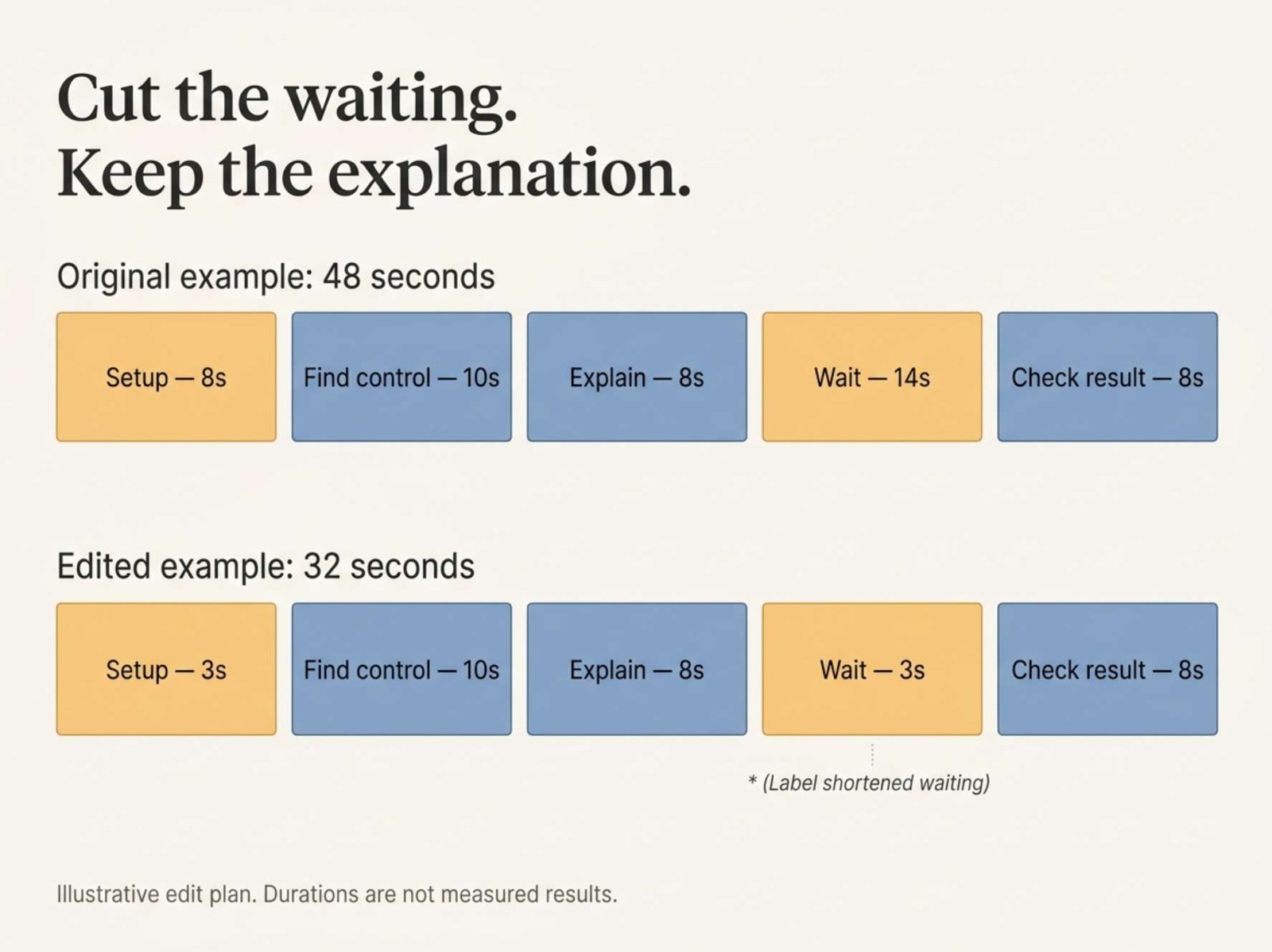
Consider a hypothetical 48-second section of a software tutorial. The presenter opens an export menu, explains one setting, starts processing, and checks the finished file.
The original sequence looks like this:
00:00–00:08 — Getting ready.
The presenter repeats what the section will cover and moves the cursor into position.
00:08–00:18 — Finding the control.
The relevant menu opens, and the cursor points to the option the viewer needs.
00:18–00:26 — Explaining the choice.
The presenter describes why this option fits the example.
00:26–00:40 — Waiting for processing.
A progress indicator moves while no additional instruction is given.
00:40–00:48 — Checking the result.
The finished file opens, and the presenter shows what to inspect.
These timings are a constructed editing exercise, not measurements from a tested application.
The opening delay and processing wait are possible places to shorten. The menu demonstration and result check deserve a different treatment.
They may look slow to the person who recorded the video. That person already knows where the control is and what the result should look like. A first-time viewer does not.
The First Cut: Remove Preparation the Viewer Does Not Need
Listen to the opening without watching the picture.
Perhaps the presenter says:
“Okay, so now we’re going to move on to the next part, and what we’re going to do here is look at the export settings.”
The sentence announces the action without explaining much about it.
A tighter version might be:
“Open the export settings.”
If the purpose needs clarification, add a short, specific explanation. Avoid replacing a long introduction with a command that leaves viewers wondering why they are doing it.
In our example, assume the opening can be reduced from eight seconds to three by removing repeated setup. That saves five seconds while leaving the actual demonstration untouched.
Work on a duplicate sequence or a saved project version so you can compare the edit with the original.
When removing a section, keep the related screen recording, narration, camera footage, and annotations synchronized. After the cut, watch the surrounding sentence and action together. A clean audio edit can still leave a cursor highlight pointing at the wrong moment.
The Second Cut: Shorten the Process, Preserve the Truth
The fourteen-second processing wait is another candidate.
For a tutorial about choosing settings, watching every movement of a progress indicator may add little. You could retain the beginning, cut forward, and show completion.
In the example, that wait becomes three seconds. Add a brief label such as “Waiting shortened” so the edit does not suggest that the operation actually finished that quickly.
Together, the two changes produce a 32-second sequence:
3 seconds of setup + 10 seconds locating the control + 8 seconds explaining + 3 seconds of shortened waiting + 8 seconds checking the result.
The sequence is sixteen seconds shorter. The explanation, menu demonstration, and verification still have their original time.
That is the point of the exercise. The time savings come from selected sections rather than applying the same speed increase to everything.
There is an important exception: if the video is demonstrating processing speed, a shortened wait would remove evidence relevant to the claim. Show the timing clearly and explain any omitted footage. Do not present an edited sequence as an uninterrupted performance test.
The Pause You Should Probably Keep
After a menu opens, the presenter stops speaking briefly.
An automatic silence-removal tool might treat that moment as empty space. Watch the screen, however, and you may notice that several similar options have just appeared.
The pause gives the viewer a chance to locate the one being discussed.
The same applies after entering a filename, displaying a comparison, or opening a finished result. Silence can accompany useful visual information.
Instead of deleting every quiet section, ask what the picture requires.
If the viewer needs to read a label, keep it visible long enough to identify. If the screen contains unnecessary clutter, crop or enlarge the relevant area rather than simply holding the entire desktop for longer.
There is no single pause length that fits every tutorial. A familiar button and a detailed settings panel ask different things of the viewer.
A practical review is to play the section at normal speed and try to locate the control before the next action begins. Better still, ask someone unfamiliar with the task to explain what they would click. Their hesitation can reveal a missing visual cue.
Let the Explanation Continue Over the Demonstration
Sometimes a tutorial feels slow because the presenter finishes explaining an action before showing it.
For example, the camera remains on the presenter throughout this sentence:
“Next, open the finished file and check that the text is still readable.”
Only after the sentence ends does the video switch to the file.
You may be able to show the result while the explanation continues. The spoken instruction and the visual evidence then support each other.
In editing terminology, an L-cut allows audio from the preceding shot to continue after the picture changes. A J-cut introduces the next shot’s audio before its picture appears. Adobe describes both as edits where the audio and visual transitions occur at different times. Adobe’s explanation of J-cuts and L-cuts
For a tutorial, the useful application is simple: show the relevant screen while the viewer hears about it.
That does not mean placing any attractive footage over the narration. If the voice discusses the export settings while the picture shows an unrelated folder, the overlap creates confusion.
Keep essential actions visible. Covering a rough cut with another shot should not hide the click that makes the next instruction understandable.
Watch the Joins, Not Just the Removed Sections
An edit can make sense on paper and still feel wrong during playback.
The cursor may jump from one side of the screen to the other. A word may lose its first consonant. Background sound may disappear suddenly between two sentences.
Play a few seconds before and after each important cut.
Listen for complete words and natural breaths. Watch whether menus, selections, and filenames remain consistent. If a tiny audio fade helps soften a join, use it without fading away part of the speech.
Be especially careful when joining two attempts at the same instruction. In one take, the presenter may have selected a different option or entered a different filename. The sentences can match while the screen states do not.
If the join requires too much explanation, recording a short replacement section may be easier than disguising the mismatch.
After the edit is locked, check caption timing as well. Captions prepared for the longer version may no longer match the speech.
A Retention Graph Can Suggest Where to Look
Once the video is published, audience data can help identify sections worth reviewing.
YouTube describes retention dips as moments viewers skipped or where they stopped watching. Spikes can indicate rewatching or sharing—but they can also occur when viewers need to replay something unclear. YouTube’s audience retention guidance
That distinction matters for tutorials.
A replayed menu sequence might be useful, confusing, or simply something viewers are following while working in another window. The graph alone does not establish the reason.
Return to the footage. Check whether the option name is readable, whether the narration matches the action, and whether a necessary step was cut.
Likewise, a dip during processing is a reason to inspect that wait, not proof that every quiet section should disappear.
Avoid judging an edit only by the percentage of the video watched. A shorter video changes the denominator, and viewers may leave after finding the answer they needed.
Finish With Evidence of Completion
In the example, the eight-second result check survives the edit.
That section tells the viewer how to recognize success. Removing it would save more time, but the tutorial would end immediately after an instruction rather than showing whether it worked.
Keep the finished file, changed setting, or completed page visible while explaining what to inspect. If there is an important limitation, state it there instead of rushing straight into a promotional outro.
For the final review, watch the exported video from beginning to end at normal speed. Check whether the viewer can identify the action, follow the explanation, and recognize the result.
If all three remain clear, the cuts have done their job. If the viewer has to guess what happened between two shots, give that moment some time back.