
You know what you want to demonstrate, but your notes are scattered: a few instructions, a reminder about a common mistake, and an idea for the opening.
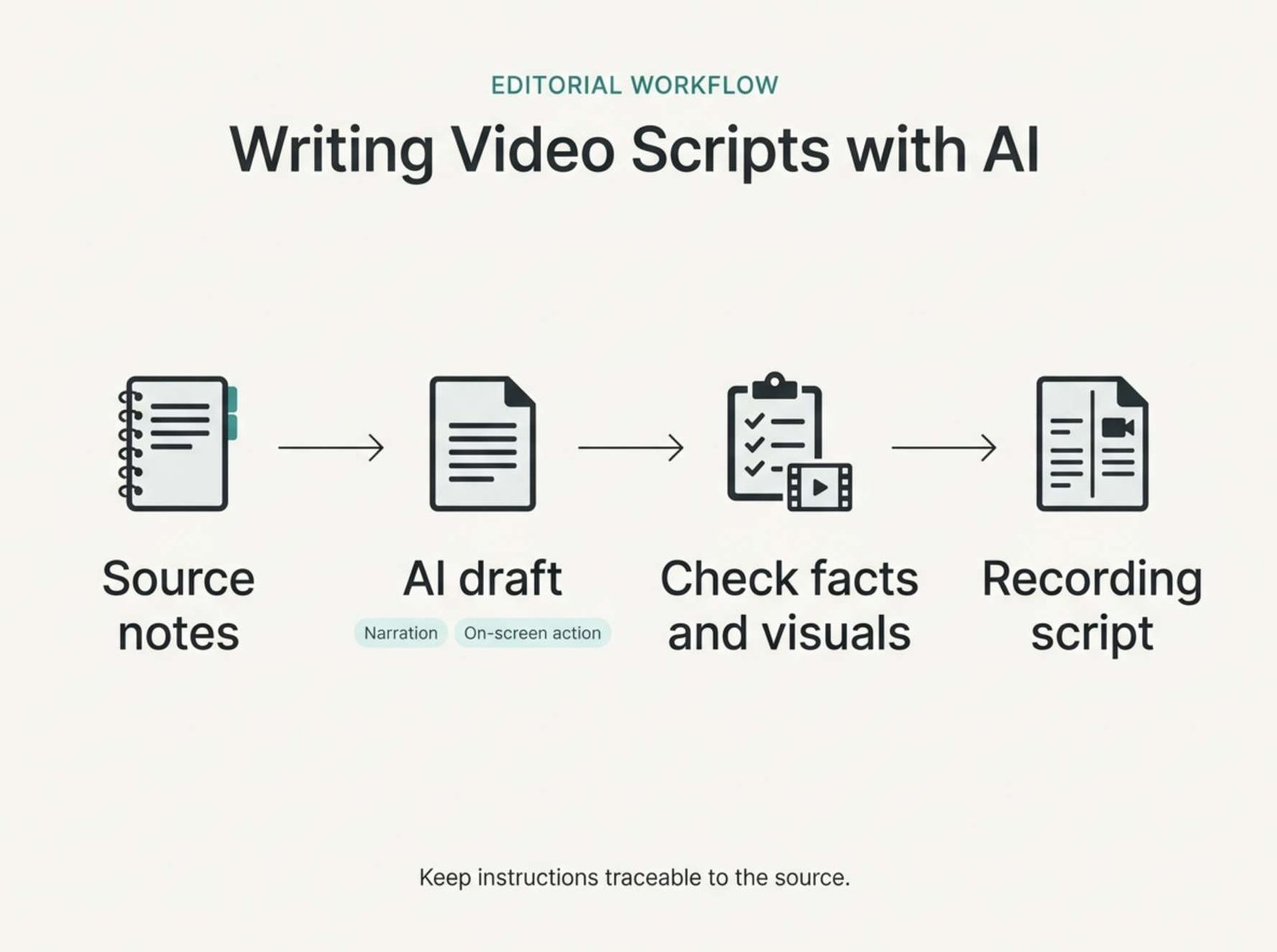
An AI writing assistant can help arrange that material into a script. The difficult part is keeping the useful details while preventing the draft from adding promises, invented experience, or steps you never intended to show.
A script can sound polished and still be unsuitable for recording. It might mention a button that does not exist, promise a result you have not measured, or describe a demonstration you cannot reproduce.
This guide walks through a small example: turning notes about organizing a new video project into a short tutorial script. The notes and script are constructed examples for this article, not results from a comparison of AI products.
Give the AI a Specific Editing Job
“Write a great video script about organizing files” leaves many decisions open.
The assistant must guess the audience, the workflow, the software, the desired length, and the facts it should include. Those guesses may produce a fluent draft that has little connection to your actual demonstration.
A more useful assignment is:
Turn these notes into a short beginner tutorial. Preserve the supplied instructions, identify missing information, and separate spoken narration from actions shown on screen.
A text assistant such as Claude can be used for this workflow. The important feature is the ability to work with your supplied notes and revise the result; you do not need automatic video generation to prepare the script.
Anthropic’s documentation recommends restricting responses to supplied material and explicitly allowing the assistant to acknowledge missing information. These techniques can reduce unsupported additions, but they do not replace review. Anthropic’s guidance on reducing hallucinations
Prepare Notes That Separate Facts from Intentions
Your source does not need elegant sentences. It needs enough detail to prevent avoidable guessing.
For the example, use these numbered notes:
| ID | Source note |
|---|---|
| N1 | Audience: beginners preparing files for a new video project. |
| N2 | Demonstration: create a main folder named desk-tutorial. |
| N3 | Inside it, create three folders: 01_footage, 02_audio, and 03_exports. |
| N4 | Put copies of camera clips in 01_footage and narration recordings in 02_audio. Keep the originals separately. |
| N5 | Use 03_exports for finished video files. |
| N6 | Set up this structure before importing media into an editing project. |
| N7 | This demonstration does not cover reorganizing an existing editing project or repairing missing-media links. |
| N8 | End by opening each folder and checking that its contents match its purpose. |
| N9 | There are no measured time savings, performance results, or claims that this is the only correct folder structure. |
Notice what these notes include: the audience, exact names, the order of operations, a final check, and the limits of the demonstration.
They also avoid an unsupported claim such as “this method makes editing twice as fast.”
For a software tutorial, add the application name, version if relevant, and the exact menu labels you have checked. If those details are missing, the assistant should flag the gap instead of supplying plausible-looking instructions.
Use a Prompt That Keeps the Draft Traceable
Paste the following prompt into your chosen assistant, followed by your notes.
Act as a video script editor.
Turn the source notes below into a clear beginner tutorial.
Audience: a person preparing files for their first video project.
Length: aim for 160–220 spoken words. Do not claim an exact running time.
Use only the supplied notes for factual instructions. You may add transitions and simplify sentences, but do not add software features, statistics, performance claims, personal experiences, or unsupported benefits.
Preserve exact folder names and the order of operations. Keep important limitations even if they make the script less promotional.
If essential information is missing, list a question rather than guessing.
Return:
- A two-column script with “Narration” and “On-screen action.”
- A separate source map linking factual instructions to note IDs.
- A list of questions or claims that still need verification.
Keep note IDs and editorial comments out of the spoken narration.
SOURCE NOTES:
[Paste the numbered notes here.]
The source map is useful because it makes the draft easier to inspect. It is not proof that every sentence is correct. You still need to compare the referenced note with what the script actually says.
What an Edited Script Could Look Like
Here is an illustrative script based on the notes above. It is an editorial example, not a verbatim output attributed to a particular AI product.
| Narration | On-screen action |
|---|---|
| Before importing media into a new editing project, give its files a place to go. In this example, we’ll create a simple folder structure for a desk tutorial. This is one arrangement you can use, rather than a required naming system. | Show a clean working location in the file manager. |
| Create a main folder called “desk-tutorial.” Open it, then add three folders: “01 underscore footage,” “02 underscore audio,” and “03 underscore exports.” | Create desk-tutorial, then the three folders. Display their exact names clearly. |
| Put copies of your camera clips in the footage folder. Put copies of your narration recordings in the audio folder. Keep the original files separately; the folders we are preparing here contain working copies. | Copy demonstration clips and narration files into their respective folders. |
| Leave the exports folder ready for the finished videos you will create later. We are setting up the folders now, before importing the media into an editor. | Open the empty 03_exports folder, then return to the main folder. |
| This walkthrough covers a new project. It does not cover moving files from an existing editing project or repairing missing-media links. | Show a brief note: “For a new project, before importing media.” |
| Finish by opening each folder. Check that camera clips are in footage, narration is in audio, and exports is ready for finished videos. | Open each folder in turn and show its contents. |
The narration explains the task while the second column describes what the viewer needs to see.
Keeping those columns separate also makes recording easier to plan. You can discover that a sentence requires three visible actions before you try to fit all three into one rushed screen recording.
Catch Changes in Meaning, Not Just Obvious Errors
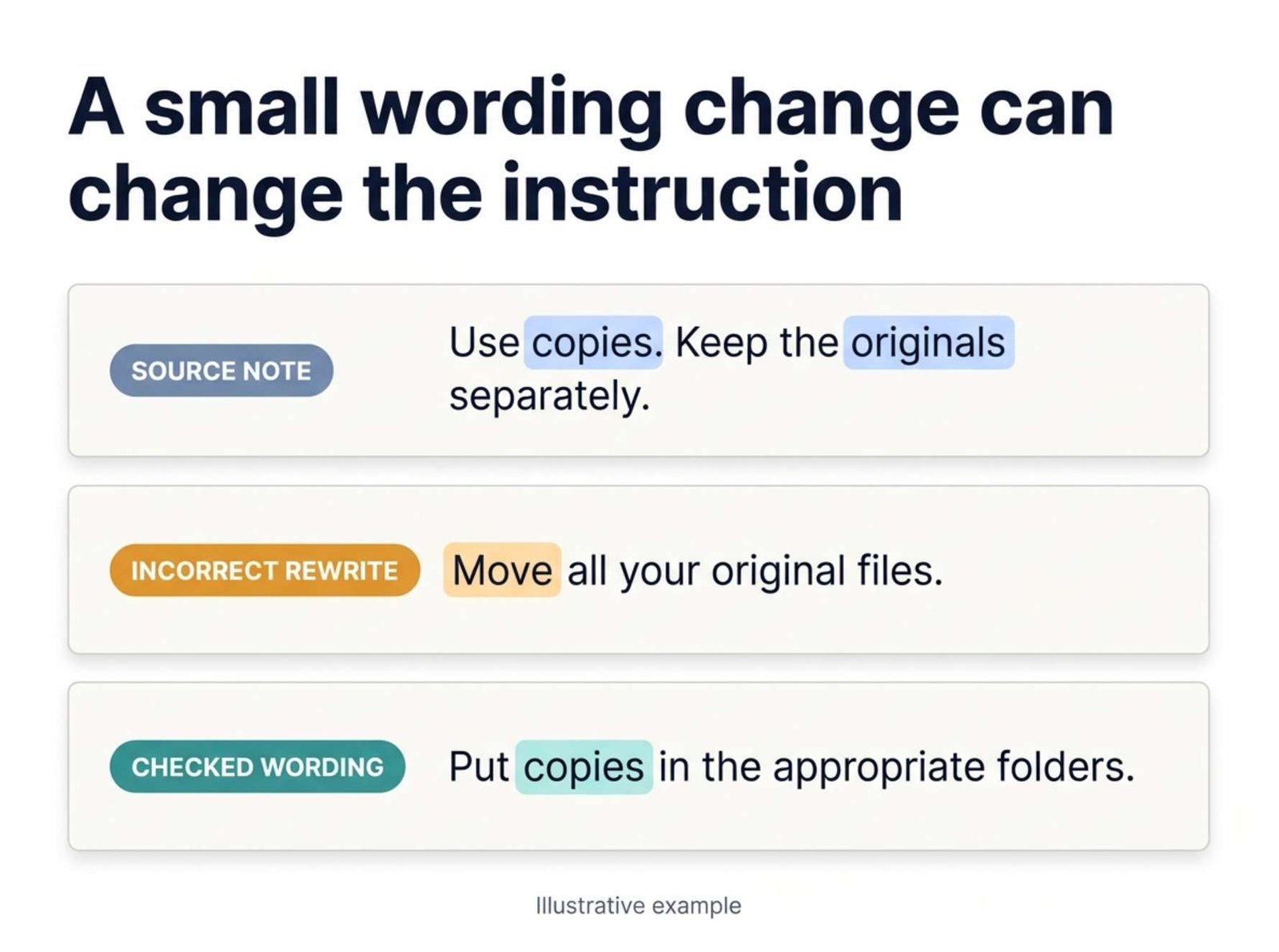
An AI draft does not need a fabricated statistic to become misleading. A small change in wording can alter the instruction.
Compare these possible additions with the source:
| Draft wording | Problem | Better wording |
|---|---|---|
| “Move all your original files into these folders.” | N4 specifies working copies and separate originals. | “Put copies of the files in the appropriate folders.” |
| “This structure prevents missing-media errors.” | The notes make no such guarantee. | “Set up the folders before importing media.” |
| “Every professional editor uses this system.” | No evidence supports that generalization. | “This example uses three folders.” |
| “You’ll save hours on every project.” | No time savings were measured. | Remove the claim. |
| “I’ve used this method for years.” | The notes contain no personal experience. | Remove it unless it is true of the presenter. |
The first example is especially important. “Copy” and “move” are ordinary words, but substituting one for the other changes what viewers are being told to do.
Read for these smaller shifts as carefully as you check numbers and product names.
Anthropic also warns that convincing language and apparently authoritative quotations can still be incorrect. A confident tone should not be treated as evidence. Claude’s explanation of incorrect or misleading responses
Check Whether You Can Actually Film Every Line
Once the factual content is sound, inspect the on-screen actions.
For the example, prepare demonstration media before recording. Use files you can safely display, with clear names and no unrelated personal information visible in the file manager.
Then walk through the script without recording:
- Can you show each folder name clearly?
- Does the cursor point to the item being discussed?
- Does the narration say “copy” while the action visibly copies?
- Are you opening the correct folder at the correct moment?
- Does the last check match the opening promise?
If a line describes something you cannot show, decide whether to change the visuals, revise the narration, or remove the line.
For example, “your workspace is now perfectly organized” is difficult to demonstrate and goes beyond the notes. Opening the folders and checking their contents is a concrete ending the viewer can follow.
Revise for Speech Without Removing the Limits
A technically accurate script may still be awkward to read aloud.
Read the narration yourself and mark where you stumble. Folder names, long menu paths, and several instructions in one sentence often need more space than they appear to need on the page.
A useful follow-up prompt is:
Revise only the narration for natural speech. Use shorter sentences and straightforward wording. Preserve every factual instruction, exact name, and limitation. Do not add benefits or personal claims. After the revision, list any changes that might affect meaning.
Then compare the revision with the previous version.
In our example, the sentence limiting the walkthrough to a new project must remain. Removing it to make the script sound smoother would broaden the tutorial beyond what it actually demonstrates.
You can also keep exact filenames on screen while making the spoken phrasing easier to follow. What matters is that viewers can still identify precisely what they should create.
Estimate Length After You Read It
A word-count target helps control the size of a draft. It does not determine the finished video’s running time.
A tutorial includes pauses, cursor movement, typing, and moments when viewers need to inspect the screen.
If a read-through takes 80 seconds and the demonstration needs another 20 seconds of pauses that do not overlap the narration, the estimated duration is 100 seconds. That is an arithmetic example, not a universal speaking rate.
Time your own rehearsal. If the result is too long, remove repetition before removing necessary instructions.
If it is too short, do not automatically ask the assistant to “expand the script.” First identify what viewers genuinely need: perhaps a closer view of a folder name or a clearer explanation of where the exported file belongs.
Keep the Final Script with Its Evidence
Save the source notes, approved narration, and shot list together.
When the workflow changes later, this small record helps you see which lines need updating. It also prevents an old draft from quietly becoming the basis for a new video after its instructions are no longer accurate.
Before recording, make one final comparison:
- Every factual instruction has support in the notes or a checked source.
- Exact names match what appears on screen.
- The script keeps the demonstration’s limits.
- Personal statements are true of the presenter.
- The visuals show the actions the narration describes.
- The ending confirms what the viewer has actually completed.
The finished script should sound like a person explaining a task they understand. AI can help arrange the explanation, but the demonstration and the evidence give it substance.