

You adjust the layout of your WordPress homepage. The article cards look cleaner, the sidebar takes up less space, and everything appears correct on your laptop.
Then you open the site on your phone. The menu overlaps the logo, a long headline pushes an image out of alignment, and a subscription form extends beyond the screen.
A staging site gives you somewhere to discover these problems before visitors encounter them. It is a separate copy of your website where you can test changes and decide which ones are ready for the live site.
However, creating the copy is only part of the job. You also need to protect it, test meaningful pages, and understand what happens when you transfer changes back.
This guide uses a hypothetical blog layout update to explain that process. The example is a testing plan you can follow, not a report of a completed website redesign.
Understand What Your Test Copy Contains
Your live website is the version readers visit. Your staging website is a separate installation used for testing.
Depending on the tool, the copy may include posts, pages, images, themes, plugins, users, and saved settings. WordPress.com, for example, documents that its staging copies also include database configuration and API keys. That makes reviewing connected services an important part of setup. WordPress.com’s staging documentation
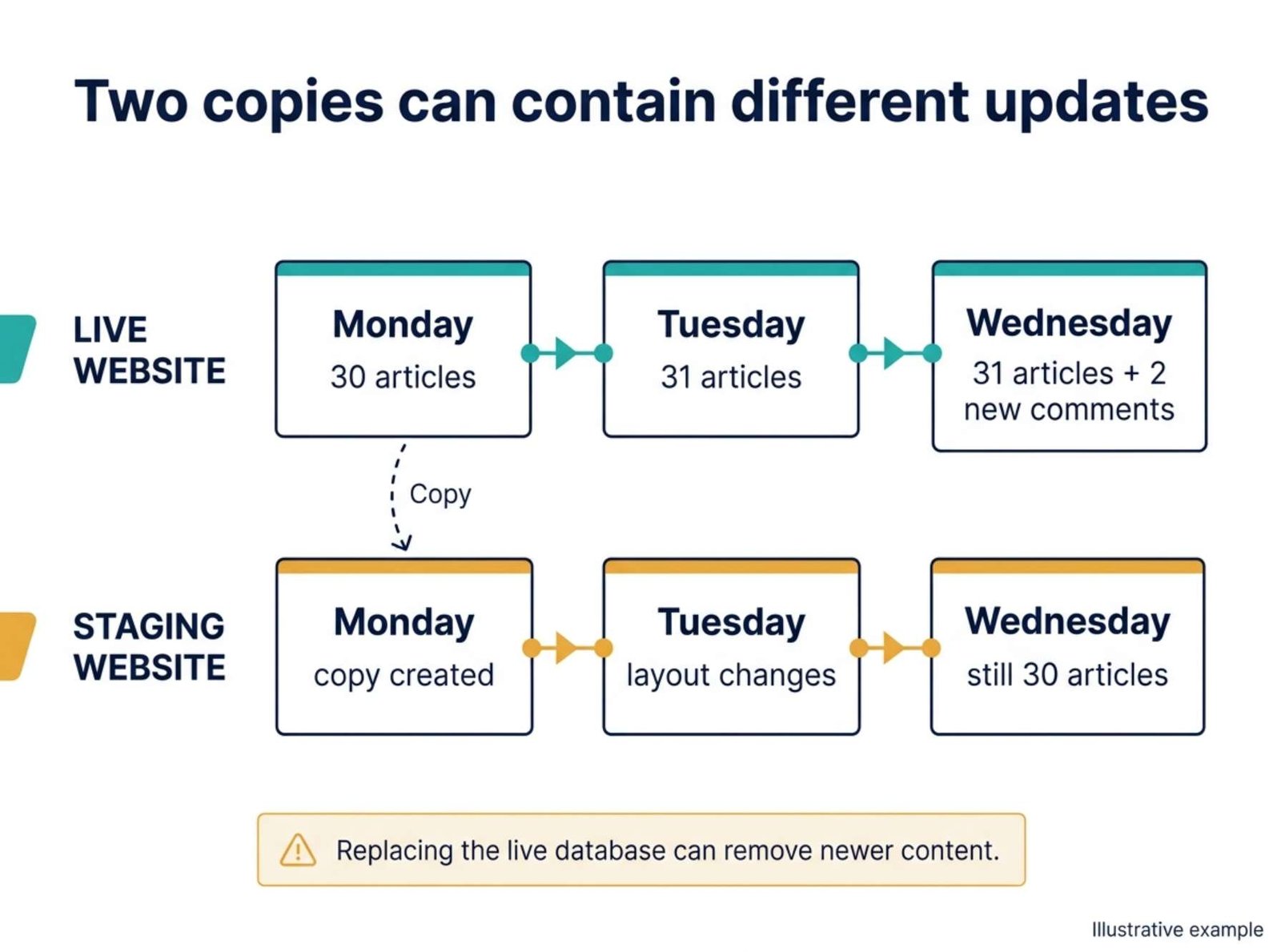
A staging site usually represents your website at the time it was copied. Do not assume new articles and comments will automatically appear in both places.
Imagine this sequence:
| Time | Live website | Staging website |
|---|---|---|
| Monday morning | Contains 30 articles | Created with the same 30 articles |
| Tuesday afternoon | A new article is published | Still contains the original 30 |
| Wednesday morning | Receives two new comments | Has a redesigned homepage |
| Wednesday afternoon | Contains newer content | Contains newer design settings |
Both versions now hold something the other version does not.
Replacing the live database with the older staging database can remove the new article and comments. This is why transferring a design change deserves more attention than simply pressing a Publish button.
Start With One Clearly Defined Change
Before creating the copy, write down what you want to improve.
For our example:
Make homepage article cards easier to scan on a phone while keeping the full article title visible on each article page.
This gives the test a clear boundary.
We are checking card spacing, headline display, and the mobile layout. We are not simultaneously replacing the theme, changing the page builder, and installing several optimization plugins.
Record the current appearance with screenshots of:
- The homepage on a desktop.
- The homepage on a phone.
- A category archive.
- An article with a short title.
- An article with a long title.
These become your comparison points. Without them, it is easy to forget whether a spacing problem existed before the change.
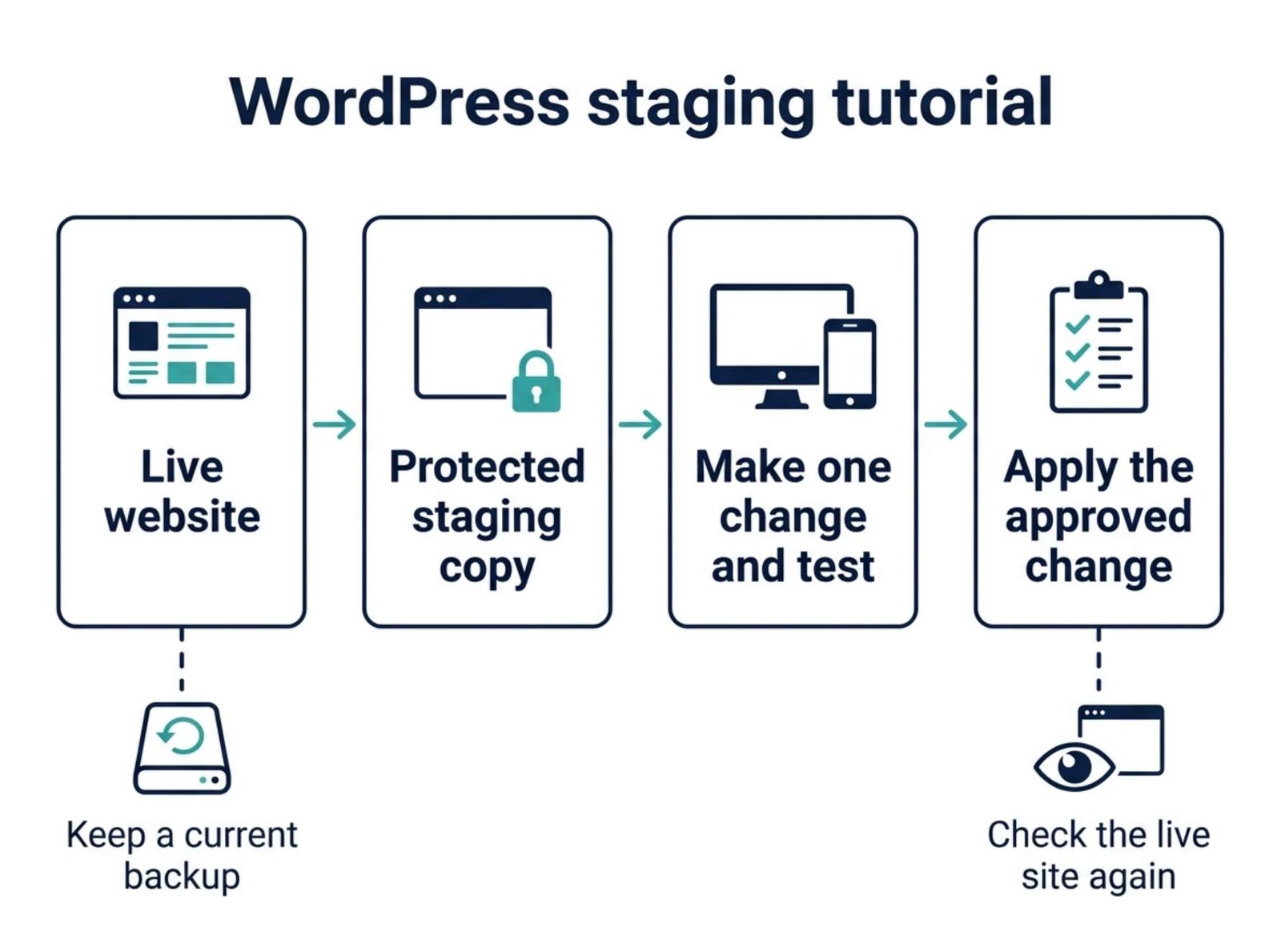
Also create a current backup and confirm how you would restore it. A staging copy used for experiments should not be your only recovery option.
Create the Staging Copy Through Your Hosting Account
Check whether your hosting plan includes a staging tool. Using the host’s existing feature is often a convenient starting point because it handles the copying process.
For example, Hostinger currently provides staging on Business web hosting plans and higher. Its documented route is:
- Open Websites in the hosting dashboard.
- Select your website’s Dashboard.
- Open WordPress → Staging.
- Select Create staging.
- Enter a subdomain name and create the copy.
Afterward, Manage staging opens the test site’s WordPress administration area. Hosting plans and interfaces differ, so use your provider’s instructions if your dashboard looks different. Hostinger’s staging setup guide
If your account has no staging feature, a staging plugin or a local development copy is another route. Check the tool’s cloning and deployment capabilities before installing it; creating a copy and transferring changes back may have different requirements.
Once the copy is ready, confirm its address before editing anything. Keep live and staging administration screens in separate browser windows, and label your bookmarks clearly.
Protect the Copy Before Testing
A staging address should not become an accidental second public website.
Use your host’s access protection to require authentication for the entire staging environment where available. Check a direct article URL and an uploaded image as well as the homepage; protecting one page does not necessarily protect every resource.
Google distinguishes between password protection, which restricts access, and noindex, which controls whether accessible content appears in search results. A noindex instruction does not make a page private. Google’s guidance on controlling access and search visibility
Within the staging WordPress dashboard, check Settings → Reading → Search Engine Visibility. Enable Discourage search engines from indexing this site if your staging setup has not already handled it.
WordPress explicitly notes that this setting does not block normal visitors. Treat it as a search visibility setting, not a substitute for access protection. WordPress Reading Settings documentation
Then review anything that can communicate outside the site:
| Connection | What to check on staging |
|---|---|
| Email delivery | Messages are blocked or routed to a controlled test inbox |
| Newsletter integration | Test submissions cannot add real subscribers |
| Analytics | Test visits do not enter your production reports |
| Payment gateway | Testing uses the provider’s sandbox or test mode |
| Automated publishing | Test posts cannot trigger real social posts or campaigns |
Where your staging tool offers these controls during creation, configure them before the copy begins running.
For instance, WP STAGING documents an option to disable outgoing email when creating a staging site. That feature is specific to the tool; do not assume every host or plugin blocks messages automatically. WP STAGING’s email controls
Test a Real Reader’s Journey
Now make the planned layout adjustment on staging.
If your theme offers card title limits or spacing controls, begin there. If it requires custom CSS, record the exact CSS separately so you can identify and transfer the change later.
For our example, changing how a headline displays on a card should not require shortening the actual post title stored in WordPress.
Use this acceptance checklist:
| Test | What a successful result looks like |
|---|---|
| Short headline | Displays naturally without unnecessary empty space |
| Long headline | Fits the intended card layout and remains clickable |
| Individual article | Shows the complete article title |
| Category archive | Remains readable and consistently aligned |
| Mobile menu | Opens, closes, and links to the correct pages |
| Sidebar | Does not overlap the article or extend beyond the screen |
| Browser zoom | Text remains usable when enlarged |
Follow the path a visitor would take: open the homepage, choose a category, open an article, use an internal link, and return through the navigation.
That sequence can expose problems a homepage screenshot misses. A card may look correct while its link goes to the wrong destination.
Check both a narrow phone layout and a wider desktop layout. If possible, use an actual phone as well as the browser’s responsive preview.
For a protected staging site, authenticate through the staging access gate, then test without a WordPress administrator session where possible. The administrator toolbar and logged-in behavior can differ from what readers see.
Keep a Short Change Record
A small record makes testing easier to repeat.
For the example, it might contain:
| Item | Record |
|---|---|
| Goal | Improve homepage card readability on mobile |
| Change | Adjust card headline display and spacing |
| Location | Theme settings or the site’s custom CSS area |
| Pages to test | Homepage, category archive, short-title post, long-title post |
| Pass condition | Cards fit correctly; full article titles remain visible |
| Deployment method | Reapply the documented settings or CSS on the live site |
| Recovery | Restore the previous setting or remove the new CSS |
Fill in the actual setting names and values used by your theme.
Avoid notes such as “fixed the design.” They do not explain what changed or how to reverse it.
If a test fails, record the page, device width, and exact symptom. “The category menu covers the first headline on a narrow screen” is much more useful than “mobile looks wrong.”
Choose How to Transfer the Change
For a small setting adjustment or a short CSS change, manually repeating the tested change on the live site can be simpler than replacing the entire site.
WordPress.com also identifies manually repeating small theme changes as an alternative to syncing a staging database, particularly when fresh store data must be preserved. WordPress.com’s deployment considerations
For a larger redesign, inspect your deployment tool carefully:
- Does it copy files, database tables, or both?
- Does it replace destination data or merge selected changes?
- What happens to new posts, comments, users, and form entries?
- Which settings contain the design changes you want?
- Can you restore the current live version if deployment fails?
Do not assume a button labeled “Sync” performs an intelligent merge.
Hostinger explicitly states that publishing its staging environment replaces live files and the database, overwriting changes made on the live site after the copy was created. Hostinger’s publishing behavior
For our card-layout example, the practical choice is to reapply the tested setting or CSS. This avoids replacing unrelated content with an older copy.
Check the Live Site Afterward
Take a fresh backup immediately before deployment, even if you made one before testing.
After applying the change, clear the relevant site cache and check the public pages again. Do not use the staging result as proof that the live site is correct: caching, domain settings, and connected services may differ.
Repeat the same reader journey and confirm that:
- The latest articles and comments remain present.
- Article cards behave as tested.
- Complete titles appear on article pages.
- Menus and internal links work.
- Links lead to the live domain rather than staging.
- Required forms and integrations work with production settings.
- Public pages are not accidentally behind staging access protection.
- The live site has not inherited an unintended sitewide
noindexsetting.
If something fails, use the change record to reverse the specific adjustment where possible. Restoring an entire database can affect content created after the backup, so match the recovery method to the problem.
Once the work is complete, keep the staging environment protected and maintained, or remove it through your staging tool after saving anything you still need.
For your next experiment, begin with a fresh copy of the current site. An old test environment may no longer represent the website your readers are using.