

You finish updating a tutorial, save the changes, and open the published page. The introduction looks better. A broken link is fixed. The screenshots are in the right order.
Then you notice that an entire explanation has disappeared.
Perhaps you selected one block too many. Perhaps a pasted paragraph replaced more text than expected. Either way, the missing section was useful, and rewriting it from memory is not your first choice.
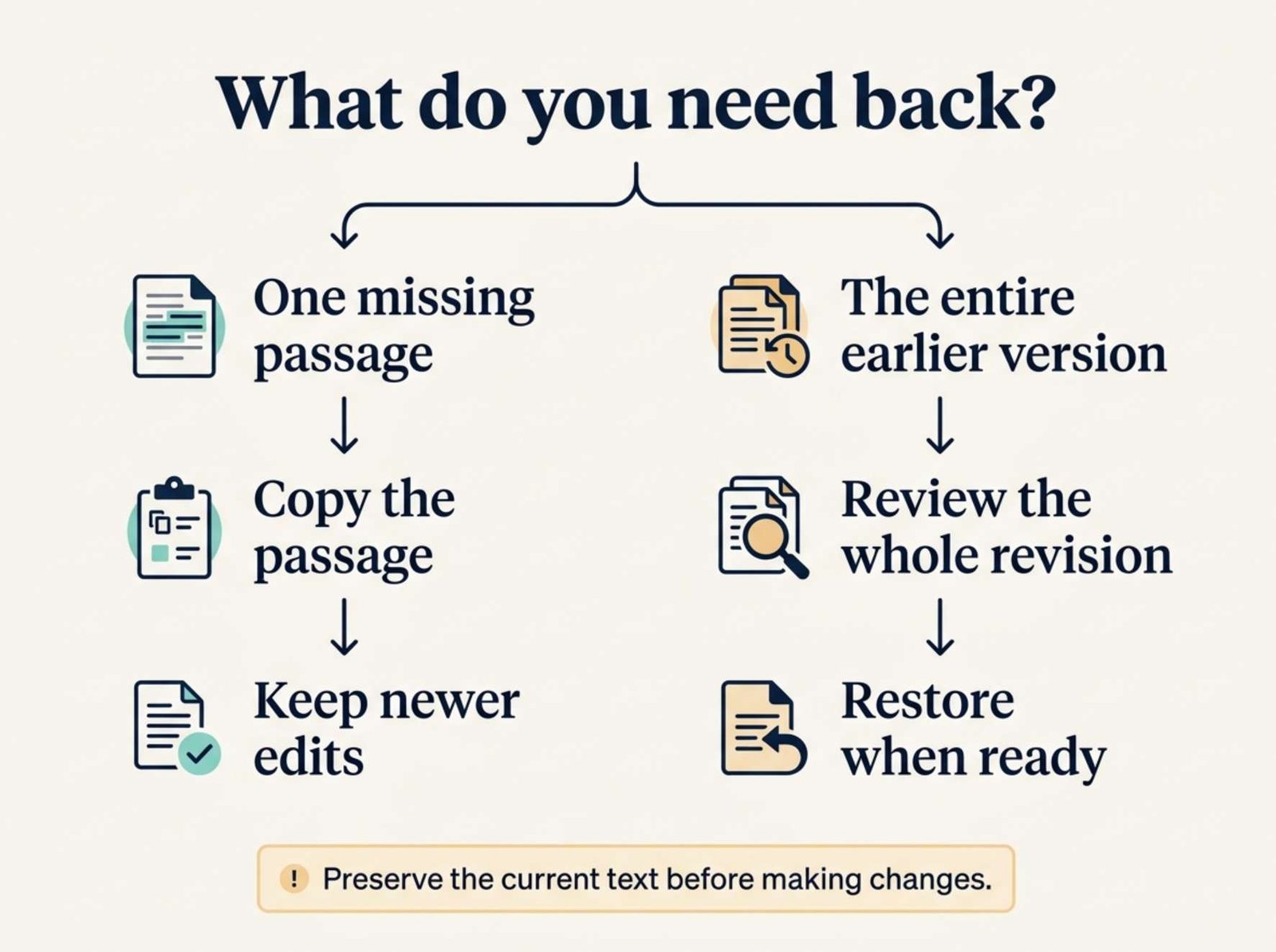
WordPress may still have an earlier version containing it. The important decision is whether you need to restore the whole article or recover only the missing passage.
Those are different jobs, and choosing the right one can save your newer edits.
Before You Click Anything Else
Pause the editing session and preserve what is currently on screen.
Copy any valuable unsaved text into a separate document. If another person is editing the same article, coordinate with them before making further changes.
This gives you a reference while you investigate. It also prevents the recovery process from becoming a second editing accident.
If you deleted the text moments ago and have not left the editor, try Undo first. Use the toolbar control, Ctrl + Z on Windows, or Command + Z on Mac. WordPress lists these controls in its block-editor keyboard shortcuts.
Undo one action at a time and watch what returns. Repeatedly pressing the shortcut can also reverse changes you wanted to keep.
If the editing session has ended or Undo no longer reaches the mistake, look for a saved revision.
Find the Version That Still Contains Your Text
Open the affected post in WordPress. In the Settings sidebar, choose the Post tab rather than the settings for an individual block. Select the number beside Revisions.
Use the revision list or timeline to inspect earlier versions. The WordPress revisions guide documents these controls.
The screen can look different depending on your WordPress version. WordPress 7.0 introduced visual revision comparisons with a timeline and block-level change markers. Earlier installations use the classic comparison screen. See the WordPress 7.0 release information.
Start near the time you remember editing the section. Move backward until you find the missing content.
The date helps you locate a candidate, but the text itself is the deciding evidence. Read the passage before restoring anything.
You might discover that the section disappeared earlier than you thought, or that an older version contains a draft you had already improved.
The Important Choice: Recover a Passage or Restore the Post?
Imagine this editing history:
| Saved version | What it contains |
|---|---|
| 11:00 | Complete tutorial, including the explanation you need |
| 11:35 | Improved introduction and corrected link |
| 12:10 | New screenshot caption, but the explanation is missing |
This is a fictional example, but it illustrates a common recovery problem.
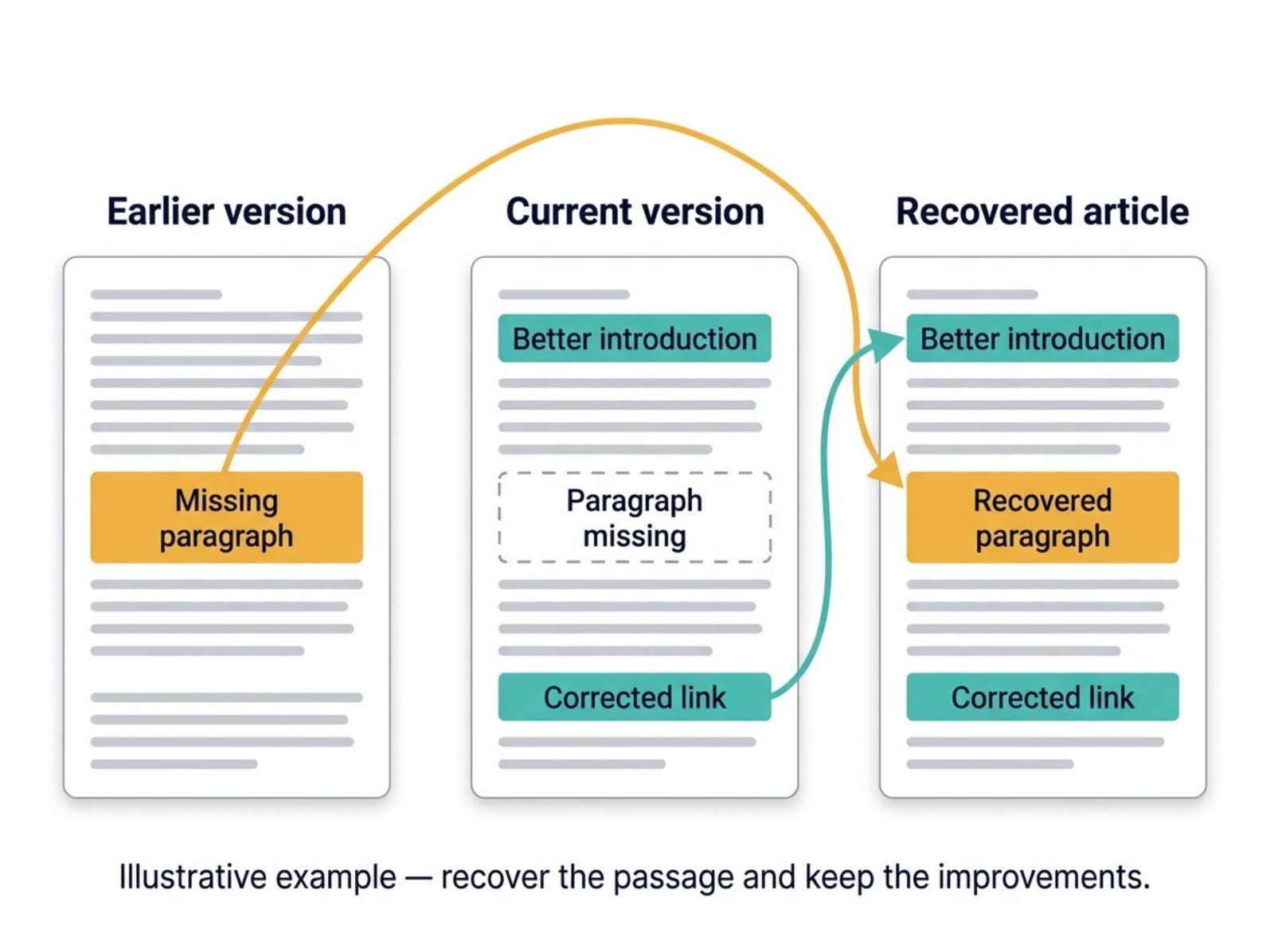
Restoring the 11:00 version could recover the missing section while also bringing back the weaker introduction and outdated link. The 11:35 version might be a better candidate—or you may only need to copy the explanation into the current post.
Before choosing, ask:
“Do I want this entire earlier version, or do I only want one part of it?”
For a missing paragraph, selective recovery is often the more precise approach. For a large accidental replacement with no useful later edits, restoring an earlier version may be simpler.
When You Only Need the Missing Passage
Find the passage in the revision view and copy its readable text into your temporary document. If the comparison displays markup, recover the wording carefully rather than pasting a mixture of HTML and comparison text into a Paragraph block.
Return to the current article without applying a whole-post restoration. Insert the missing text where it belongs, then recreate any headings, links, or list formatting that did not survive copying.
Read the paragraph immediately before and after it. The surrounding article may have changed since that passage was written.
For example, the recovered section might say “as shown in the screenshot below,” while the screenshot now appears above it. Getting the words back is only part of the repair.
When the Whole Earlier Version Is the One You Want
Inspect the selected version from beginning to end, preserve the current content, and use Restore when you are ready to replace the revisioned content. The official revision instructions describe the restoration control.
Treat restoration on a published article as a live-content operation, especially in the classic revisions screen. Do not assume it creates a separate unpublished draft for review. WordPress’s restoration function updates the post’s revisioned fields; its behavior is documented in the developer reference.
Afterward, check both the editor and the public article.
A Small Recovery Example
Suppose the missing paragraph explained how to compare an original image with a compressed copy.
The old passage reads:
“Keep the original file available while you compare the images. Check both at the same display size, and pay particular attention to small text and fine edges.”
Meanwhile, your latest article contains a corrected tool link and a clearer explanation of image dimensions.
You do not need to give up those improvements.
Recover the paragraph, place it back beneath the comparison heading, and check that the surrounding instructions still flow logically. Then verify the corrected link and the newer explanation remain present.
Your final article should contain:
- The improved introduction.
- The corrected link.
- The recovered comparison paragraph.
- The latest screenshot caption.
This is a deliberate combination of the useful parts of different versions. It is not necessarily identical to any single saved revision.
That distinction matters whenever an article has received several edits since the mistake.
What About the Autosave Message?
After a browser crash or interrupted editing session, WordPress may offer an autosaved version.
An autosave is a temporary recovery copy. WordPress keeps at most one autosave per user for a given post, replacing it as newer autosaves are made. Autosaving itself does not overwrite the published article. These details are covered in the WordPress revisions documentation.
Inspect an offered autosave before accepting it. It may contain work that never reached a normal save, but it may also contain the accidental deletion.
Use the content to decide, rather than assuming that the newest timestamp represents the best version.
If a recovery notice appears, preserve any currently visible work before moving between versions.
When the History Does Not Contain the Passage
A revision history is only useful if the version you need was actually retained.
WordPress allows revision storage to be disabled or limited. A site may therefore keep only a small number of earlier versions. The configuration options are explained in the WordPress administration handbook.
Ask the person managing your site or your hosting provider whether a retention limit or cleanup process applies.
Increasing the limit now does not recreate versions that have already been removed.
Other useful places to check include your original writing document, a downloaded draft, an editorial copy, or an available backup from before the deletion.
If the passage exists only in a site backup, ask whether that backup can be opened in an isolated staging environment so you can extract the text. Recovering one paragraph should not require casually replacing the current live database with an older one.
WordPress explains that a complete site backup includes both the database and files in its backup guidance.
What Revisions Will Not Repair
Post revisions are useful for recovering article content, but their scope is limited.
WordPress’s default revisioned fields include the title, content, and excerpt. Plugins can extend what is stored. See the revision-field reference.
This has practical consequences.
If you deleted an Image block but the image file still exists, recovering the block may reconnect the article to that file. If the underlying file was permanently deleted from the server, restoring old article text does not recreate the missing image.
Likewise, an article revision is not a rollback of your theme, plugin configuration, or entire website.
Identify what is missing before choosing the recovery tool:
| Missing item | Where to begin |
|---|---|
| Text deleted during the current session | Undo |
| A passage present in an older saved version | Post revisions |
| Work interrupted before a normal save | An available autosave |
| An image file removed from storage | An original copy or file backup |
| Site settings or multiple kinds of content | A suitable backup and recovery plan |
This guide concerns content inside an existing post. Recovering an entire deleted post is a separate task.
Check More Than the Recovered Words
Once the text is back, preview the article at desktop and mobile widths. WordPress provides preview controls through the editor’s View menu, described in its preview documentation.
Check the repaired section in context.
Does the heading still introduce the right topic? Are numbered steps in the correct order? Do links open the intended destinations? Does a restored image still have the appropriate caption?
Also check any table-of-contents link that points to the recovered heading. If you recreated the heading manually, its anchor may need to be restored too.
After saving the final changes, open the public URL in a separate browser window. Confirm that the section is visible and that your newer improvements remain intact.
If the public page still shows an older copy, check your site’s caching before repeating the restoration.
Make the Next Recovery Easier
Before a substantial rewrite, keep a dated copy of the article. Save meaningful drafts during the work, and confirm that WordPress reports a successful save.
For published posts, remember that saving edits can change the live page. Use a separate working draft or staging workflow when the rewrite needs review before readers see it.
Keep original image files and a backup process alongside the article history. Each protects a different part of your work.
When a passage disappears, the aim is to recover the version you need while preserving the improvements you still want. Start with the smallest repair that accomplishes that.