
You replace an outdated paragraph, save the page, and open your website. The old paragraph is still there.
You return to the editor. Your new text is present.
At this point, it is easy to repeat the edit, install another plugin, or start changing settings that have nothing to do with the problem. A better starting point is to establish which version of the page each screen is showing.
The editor, a preview link, your logged-in browser, and a visitor’s browser do not always show the same state.
WordPress documentation identifies several possible causes, including browser caching, server caching, caching plugins, and editing the wrong location. The task is to distinguish between them before applying a fix. WordPress’s guide to changes that do not appear
Start With One Change You Can Recognize
Choose a specific detail that should be different.
For a text edit, that might be an old phrase that you replaced with a new one. For a design change, it might be the color of one button or the spacing below a heading.
Avoid testing with “the page looks slightly different.” A clear comparison is easier to follow:
Previous text: Weekly updates from our team.
Expected text: Practical guides for independent creators.
These are illustrative phrases, not text you need to publish.
Keep the public page address beside your notes. As you troubleshoot, use that same address and compare the same detail. Otherwise, you may accidentally switch between a preview, a translated page, and the live version without noticing.
“It Looks Right in Preview, but the Public Page Is Old”
First, confirm that the change was actually published.
A preview can show work that has not reached the public page. An autosaved draft can also preserve your editing progress without replacing what visitors see.
Use the editor’s Save, Update, or Publish control as appropriate, and wait for confirmation that the operation succeeded. Check for an error message rather than assuming the button click completed the save.
Then open the normal public URL. Do not use a preview address containing an editing token.
If you restored a revision, confirm that you also saved or updated the restored content.
Elementor’s troubleshooting documentation makes the same distinction between the editor’s preview state and the published page. It also recommends checking that you edited the correct domain, page, or template. Elementor’s publication and preview checks
There is a useful question here: If you close and reopen the editor, is the intended change still present?
If it disappears, investigate saving first. Clearing visitor caches cannot publish an edit that was never successfully saved.
“I Can See the Update, but Someone Else Cannot”
This pattern makes caching worth investigating, but it does not prove caching is the cause.
Logged-in users may receive a different version from ordinary visitors. Some sites also show different content according to language, membership, or other conditions.
Open the exact public URL in a new private browsing window without signing into WordPress. Compare the same phrase or design detail.
If the private window shows the old version, you have confirmed a difference between the two viewing conditions. You have not yet identified which system produced it.
Private browsing helps separate the test from your normal browser session. It does not bypass a cache on your hosting server or a content delivery network.
If both windows show the update but another person still sees the old page, ask them to confirm the full URL and reload it. A second browser or device is another useful comparison. Note whether you are testing the same language and the same desktop or mobile layout.
The purpose is to narrow the difference, not to collect as many screenshots as possible.
“Only My Normal Browser Shows the Old Version”
Now the local browser becomes a stronger suspect.
Try a hard reload. If the old content persists, use your browser’s controls to clear cached files and reopen the page. You do not need to delete saved passwords simply to test a stale page.
A cache stores reusable copies of resources so they do not need to be downloaded or generated on every visit. Sometimes the stored copy remains visible after the original has changed.
However, repeating a browser refresh will not solve every version of this problem. If a server keeps returning an old page, your browser can request it again and still receive that same old page.
Use the result to decide what to inspect next:
| What you observe | What it suggests checking next |
|---|---|
| The reopened editor has lost the change | Saving or publishing |
| A fresh browser shows the update, but your usual browser does not | Local browser cache or session differences |
| The logged-in view is current, but logged-out views are old | Visitor caching or conditional content |
| Text is current, but styling is old | Generated styles, cached CSS, or a style override |
| One page is correct, but a similar page is not | Page identity, template assignment, or separate content |
These are starting points, not diagnoses.
“Every Logged-Out Test Still Shows the Old Page”
At this stage, inspect the caching systems your site actually uses.
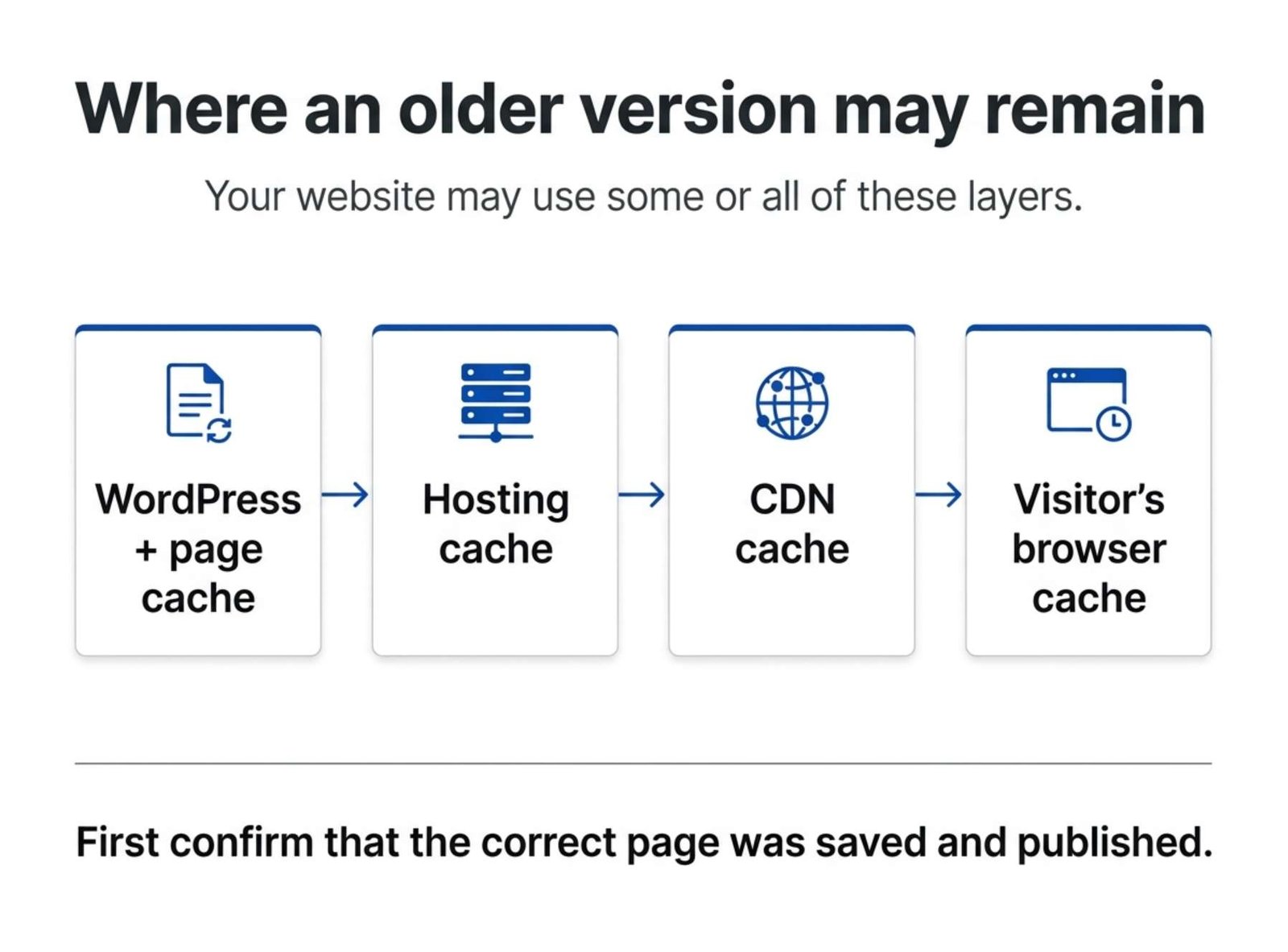
There may be a WordPress cache plugin, a hosting cache, a CDN, or a combination. You do not need to install another cache plugin to clear an existing one.
Begin with the cache closest to WordPress, then work outward toward the hosting layer and CDN. If an outer cache is refreshed while an inner layer still holds old content, it can collect the old version again.
Where your tool supports it, purge the affected page rather than clearing the entire website. Retest after each action and record what changed.
If you use LiteSpeed Cache
Open LiteSpeed Cache → Toolbox → Purge.
For a single affected page, the Purge By… area supports a URL option. A wider Purge All – LSCache action clears page-cache entries associated with the current WordPress installation.
LiteSpeed also provides a separate Purge All – CSS/JS control for cached minified or combined styles and scripts. Purging a page by URL does not clear those files. LiteSpeed’s purge controls
Choose the action that matches the symptom. An old paragraph and an outdated stylesheet are different things.
If your host provides caching
Look in the hosting dashboard for its cache-management controls. Their names and locations depend on the provider.
If you cannot identify the relevant cache, ask support whether the affected URL is served from a server-side page cache and how to purge it.
An empty WordPress plugin list does not establish that server caching is absent.
If you use Cloudflare
Cloudflare supports purging specific URLs. In its documented dashboard workflow, open the cache configuration area, choose Custom Purge, select URL, and enter the affected resource address. Cloudflare’s instructions for purging a specific URL
Target the resource that is stale. Clearing an HTML page does not necessarily clear a separate CSS file or image.
Also avoid assuming that Cloudflare caches every HTML page simply because the domain uses Cloudflare. What it stores depends on your configuration.
“The New Text Appears, but the Design Has Not Changed”
This is a different clue.
If your updated paragraph is visible, the page is at least receiving that content change. An old font, color, or layout can involve generated style files, cached CSS, or another styling rule that takes precedence.
For an Elementor-built page, its documentation provides a Clear Files & Data tool for regenerating generated files and data. The documented route is WordPress Admin → Elementor → Tools → Clear Files & Data. Elementor recommends backing up the site before using this operation. Elementor’s Clear Files & Data guide
Afterward, clear relevant page or asset caches and check the public page again.
If the style still does not change, inspect the setting itself. A desktop setting may differ from a mobile setting. A theme rule may override a page-builder rule. Custom CSS may target an element that the public page does not contain.
For example, changing a heading style inside an article does not necessarily change the article-title cards on your homepage. They can be separate elements with separate styling.
Repeated purging cannot correct a setting applied to the wrong element.
“I Removed the Text, but It Still Appears Somewhere Else”
Before clearing another cache, locate the source of that particular block.
A newsletter message might exist in a homepage section, a sidebar widget, and a shared template. Editing one does not automatically edit the others unless they use the same shared content.
This matters when two blocks look almost identical.
Compare where the remaining text appears. Is it inside the article, beside it, or in the footer? Does it appear on every post or only one category?
Then inspect the component responsible for that location. Depending on your setup, it could be a widget area, a theme option, a Site Editor template, or a page-builder template.
Also confirm that the URL belongs to the live site. A staging copy can preserve the old text even after the production site has been updated.
The right fix may simply be editing a second instance.
When to Stop Clearing Caches
If the change is saved, the correct page is being tested, and the relevant caches have been cleared, stop repeating the same actions.
Move to a more specific investigation. Test plugin conflicts or optimization settings on a staging copy, with a current backup and a record of the settings you change.
For a support request, gather the public URL, the exact expected change, the time you saved it, and whether the problem affects logged-in users, logged-out users, or both. Include which caches you cleared and the result of each test.
“Visitors still see the old sidebar sentence, but the article text has updated” gives support much more to investigate than “WordPress is broken.”
Once the issue is fixed, verify the public page without an administrator session. Check the original detail and any affected mobile layout.
You are finished when visitors receive the intended version—not merely when the editor shows it.