
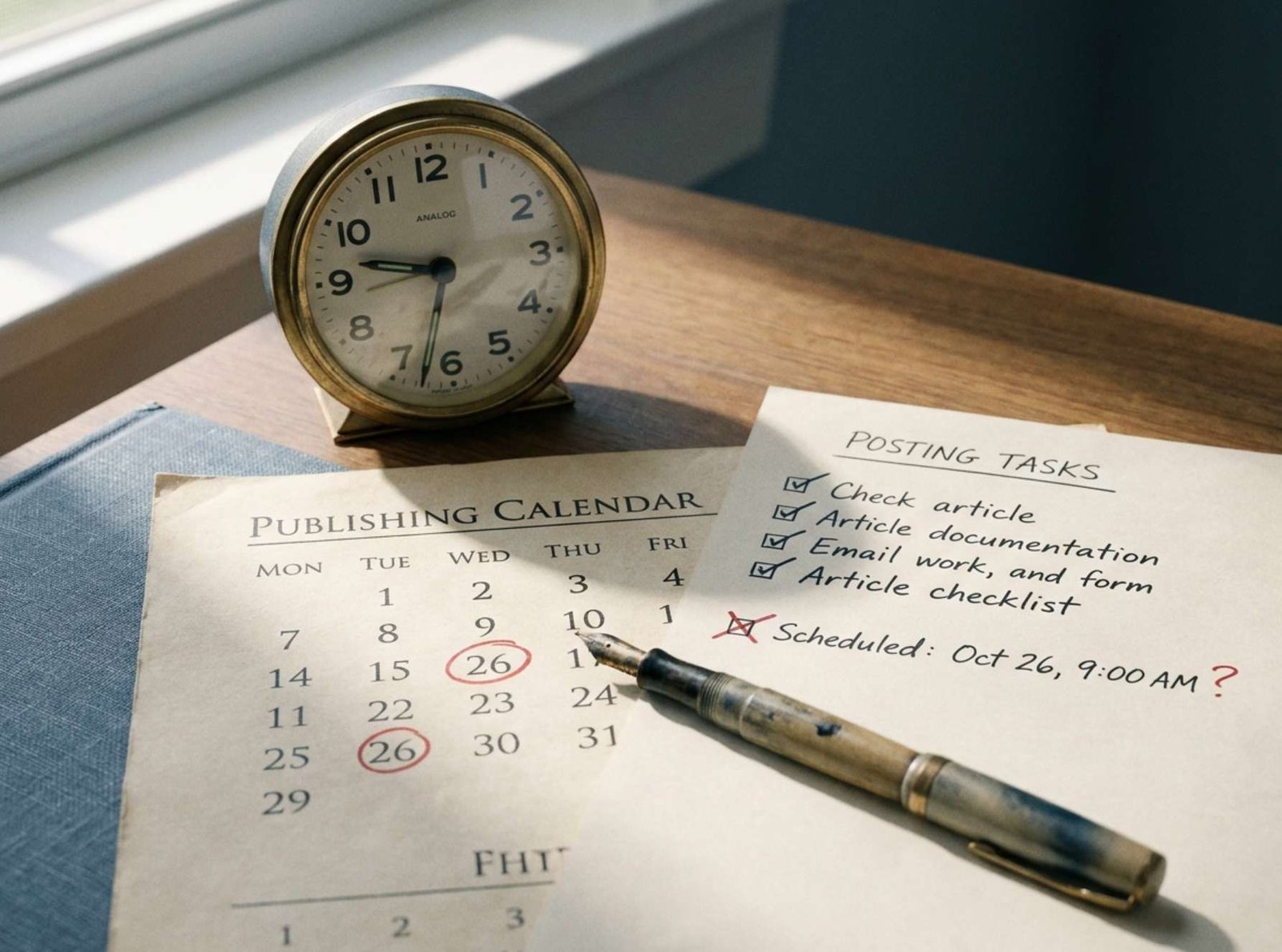
You scheduled an article for the morning. The deadline has passed, but the article is still missing from your website.
Before changing settings, open Posts → All Posts and find the original entry. Its status tells you where to begin.
A draft, an overdue scheduled post, and a published article missing from the homepage are different problems. Treating all three as a scheduling failure can send you toward the wrong fix.
This guide covers ordinary posts on a self-hosted WordPress site using the block editor. Hosting services and editorial plugins may change some controls.
Start with the Status, Not the Homepage
Use the post list and editor to establish what WordPress has actually saved.
| What you find | What to investigate |
|---|---|
| Draft | The article was saved but may never have been scheduled |
| Pending review | Someone with publishing permission still needs to approve it |
| Scheduled with a future date | Confirm the date, time, and site timezone |
| “Missed schedule” or an overdue scheduled entry | Investigate why the publishing task did not run |
| Published | Check the public URL and how the homepage displays posts |
WordPress distinguishes drafts, pending posts, scheduled posts, and published posts internally. A future date written into a draft is not sufficient evidence that scheduling was completed. WordPress post statuses
If the status is Published, open the article’s permanent URL in a browser where you are logged out.
If the article is visible there but absent from the homepage, investigate the homepage’s category filters, layout, and cache. Republishing a duplicate article would not address that display problem.
Check Which Clock the Schedule Uses
Open Settings → General and locate Timezone.
WordPress lets you choose a city or a fixed UTC offset. Choose the timezone your publishing calendar is intended to use. For a region that changes clocks seasonally, a suitable city timezone follows those changes; a fixed offset does not. Save any correction. WordPress general settings
Here is an illustrative example:
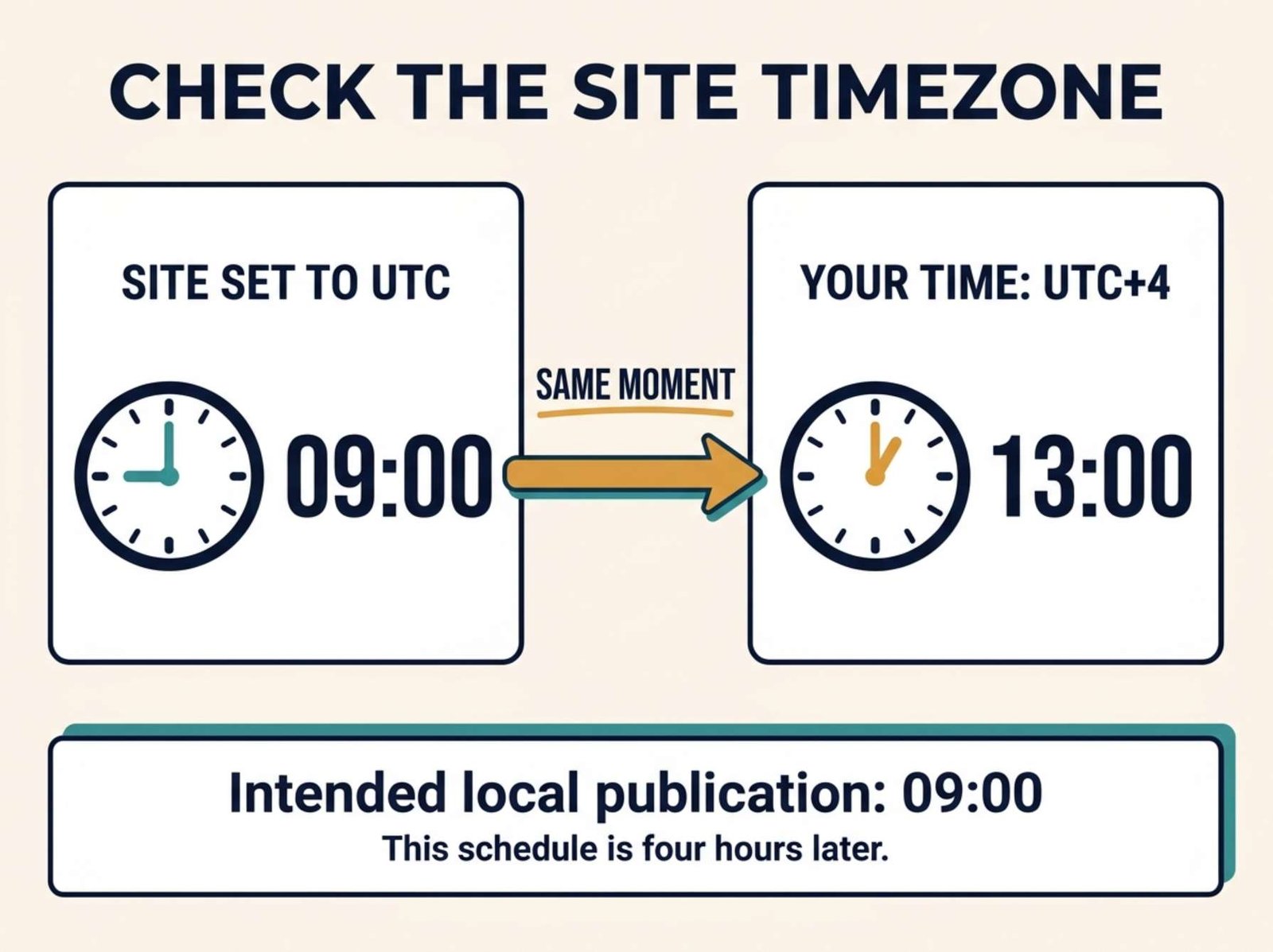
- Your intended publication time is 09:00 in UTC+4.
- The website is configured to UTC.
- You enter 09:00 into the post’s scheduling controls.
That schedules publication for 09:00 UTC, which is 13:00 in UTC+4. At 09:15 local time, the article is not yet overdue according to the site’s clock.
Changing the date display from one format to another will not fix a timezone mismatch.
If you change the site timezone, reopen your queued posts and verify their saved publication times. Do not assume that changing one setting has adjusted every existing schedule to your intended local time.
Confirm That You Finished Scheduling
Open the article and select the Post settings in the editor sidebar.
Find the publication date and time. Check the complete date, including the month and year, and verify AM or PM if those controls appear.
For an article you want to publish later:
- Select a future date and time.
- Click Schedule.
- Complete the confirmation if WordPress displays one.
- Return to the post list and confirm that the entry is scheduled.
WordPress’s scheduling tutorial describes selecting the future publication time and confirming the Schedule action. Merely closing the calendar does not complete the workflow. WordPress scheduling tutorial
If your account offers only Submit for Review, ask the site’s editor or administrator to complete publication or scheduling.
If the Article Needs to Go Live Now
You can handle the overdue article before investigating the recurring cause.
First, record its original scheduled time and any warning shown in the post list. A screenshot is useful if you later contact support.
Then open the original article, review its content and visibility, and change the publication setting to Now or the current site date and time. Use the available publishing control and complete any confirmation.
The block editor’s publication settings let you change the date and select Now for immediate publication; the precise controls can vary with your setup. WordPress post settings
Afterward, confirm two things:
- The entry is marked Published.
- Its permanent URL opens publicly while you are logged out.
Keep working with the original entry. Creating another copy can complicate links and leave the old scheduled entry waiting to publish later.
Manual publication resolves the immediate editorial problem. It does not establish why automatic publication failed.
Why a Correct Schedule Can Still Run Late
WordPress uses a background scheduling mechanism called WP-Cron for tasks that include publishing scheduled posts.
In its default arrangement, WordPress checks for due tasks during page loads. It is not a continuously running clock. If an article is due at 09:00 and no request triggers the scheduler until later, publication can be delayed. Some hosting providers use a separate server scheduler, so your site may not depend on this default arrangement. WordPress’s explanation of WP-Cron
Low traffic is therefore one possible explanation, but it is not a complete diagnosis.
For example, an overdue article appearing shortly after you visit the site is consistent with a delayed trigger. That observation alone does not prove that every scheduling failure has the same cause.
Record the pattern: one late article, several late articles, or failures beginning after a particular hosting or plugin change.
Read the Relevant Site Health Messages
Go to Tools → Site Health → Status and let the checks complete.
Look for messages concerning scheduled events or a failed loopback request. Expand the relevant item and copy its exact wording, including any error code.
Site Health reports configuration issues and includes checks related to loopback requests, which WordPress uses for scheduled events. A warning is useful evidence, although it may require further investigation to identify the cause. WordPress Site Health documentation
A loopback request is WordPress connecting back to its own site. Plugin or theme conflicts can interfere with it, as can server security rules, DNS, SSL, or HTTP authentication. WordPress loopback troubleshooting
Avoid changing several things at once. If you disable plugins, change themes, and adjust hosting settings together, it becomes difficult to identify which change mattered.
For a functioning public site, investigate suspected conflicts on a staging copy where practical. Remember that staging may have different authentication and scheduling settings, so a successful staging test does not prove the live environment is identical.
Give Your Host a Specific Question
If the timezone and post status are correct but scheduling keeps failing, ask the hosting provider how scheduled tasks run on your account.
A useful request includes the affected article, the expected time with timezone, what happened, and any Site Health message.
For example, adapt this message using your actual details:
A scheduled WordPress article remained unpublished after its saved publication time. I verified the site timezone and confirmed that the post had been scheduled. Please check how WP-Cron is triggered on this hosting account, whether recent runs failed, and whether the site can complete loopback requests. If a server cron job already handles WordPress tasks, please confirm its interval and recent execution results.
Attach the relevant error text and timestamps. Do not send passwords in the message.
The important distinction is whether the site uses ordinary request-triggered WP-Cron or an existing server task that needs repair.
If Your Host Recommends Server Cron
A server scheduler can trigger WordPress tasks at regular intervals without waiting for a visitor.
WordPress documents connecting its task system to a server scheduler and then disabling the ordinary page-load trigger. The replacement needs to be configured before that default trigger is disabled. WordPress server scheduling guidance
Do not copy a configuration change that disables WP-Cron without confirming what will run the tasks instead.
Ask the host to explain the chosen interval. A task checked every five minutes may run after the intended publication minute; that interval does not promise publication at an exact second.
Verify the Next Real Publication
After the correction, use your next finished article to check the workflow.
Record its scheduled date, time, and timezone. Confirm that its status is Scheduled, then check its public URL after the intended publication time and the expected scheduler interval.
If it remains unpublished, preserve the timestamps and report them to the host. Those details allow support to compare the event with execution logs.
One successful publication is a useful check, though an intermittent failure may need observation across subsequent posts. Keep the original error and the eventual fix in a short maintenance note so that the same problem is easier to recognize next time.