
You have agreed on an article with a guest writer. They need somewhere to write, you need time to review it, and someone has to add the images before publication.
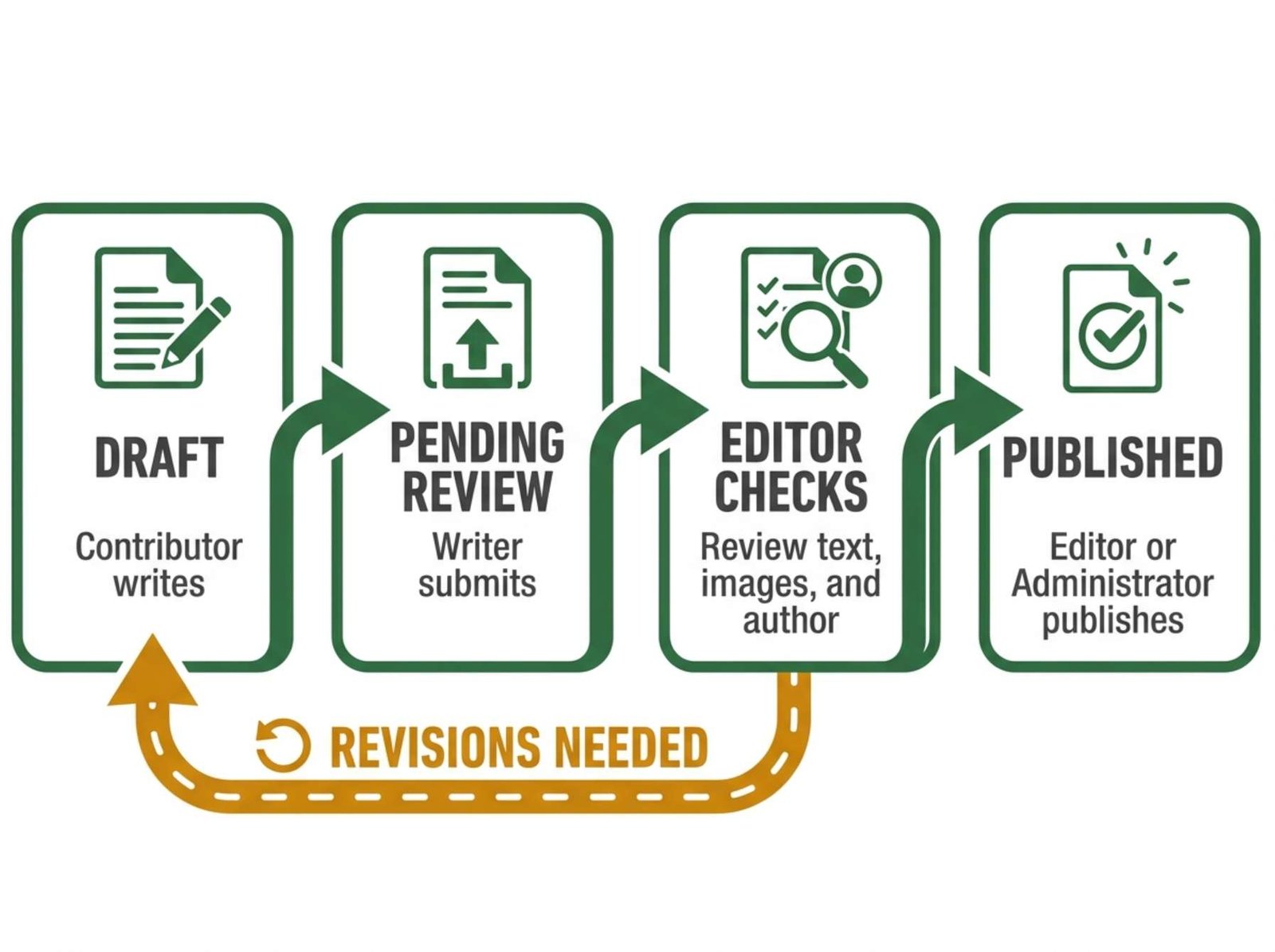
WordPress can support this arrangement through its built-in user roles and post statuses. For a small blog, the workflow can be straightforward: the writer prepares a draft, marks it ready for review, and the site owner checks and publishes it.
The details matter most at the handoff. An unfinished image note, a missing source, or the wrong author name can easily travel from a draft into a public article.
This guide follows a standard self-hosted WordPress site using ordinary posts and the default user roles.
Choose the role that matches the assignment
For a writer whose work requires approval, Contributor is the relevant starting role.
The differences between the main editorial roles are significant.
| Role | Default editorial permissions |
|---|---|
| Contributor | Writes and edits their own unpublished posts and submits them for review |
| Author | Publishes and manages their own posts and uploads files |
| Editor | Edits and publishes posts by other users as well as their own |
| Administrator | Manages site administration in addition to editorial work |
A default Contributor cannot upload files or publish posts. These limits shape the workflow, particularly when an article needs screenshots. Plugins and custom role settings can change the defaults, so check how the role behaves on your site. WordPress documentation on roles and capabilities
For this example, the guest writer will prepare the text and supply image files separately. The site owner will review the content, upload the images, and publish the finished article.
Create an individual account
From an administrator account, open Users → Add New.
Enter a suitable username and the writer’s email address, select Contributor, and enable the option to send the new user an email about their account. Then create the user.
WordPress provides these controls in its user-management screens. WordPress user-management guide
Ask the writer to complete the account setup and confirm that they can sign in. If the account email does not arrive, check the address and spam folder, then investigate the site’s email delivery.
An individual account also lets the article remain associated with its writer. Before the first publication, review the name that should appear publicly. WordPress provides a Display name publicly as setting in the user’s profile. The way that name appears on the site depends on the theme. WordPress profile settings
Use a name agreed with the writer and a short biography that accurately describes their contribution or experience, if your theme displays biographies.
Agree on what a review-ready draft includes
A post status tells you where the article is in the workflow. It does not tell you whether the draft contains everything you need.
Give the writer a short brief before they begin. For a tutorial, that brief could ask for:
- A specific reader problem and a title that matches it.
- Steps arranged in the order the reader should follow.
- Source links beside factual claims that need checking.
- The application version or device used for any documented test.
- Image files with placement notes and proposed captions.
- A clear note wherever a detail still needs confirmation.
For example, a writer covering video export might report that they followed the process on Windows with a particular application version. That gives you something concrete to compare with the screenshots and instructions.
If the article uses a hypothetical example, label it as an example. If it reports a test, keep the relevant settings and observations available for review.
These requirements help you distinguish a finished draft from a collection of ideas without relying on its word count.
Prepare the draft and its images
The writer can open Posts → Add New, enter the title, and build the article with headings, paragraphs, lists, and other available blocks. They should save the draft while working.
Decide how images will reach the editor before the writer starts. Under the default Contributor role, the editor handles uploads. The writer can supply files through an agreed shared folder or other existing file-sharing method.
A simple image handoff might look like this:
File: export-settings-window.png
Placement: After the paragraph explaining the export preset.
Caption: Check the selected preset before exporting the sample.
Alt text: Export settings window with the selected preset highlighted.
Source: Screenshot captured by the writer during the documented test.
The editor can then check the file, upload it, and place it beside the correct instruction.
Keep editorial notes clearly identifiable. If a temporary line such as “[Insert export screenshot here]” appears in the draft, include it in the final review so it gets replaced before publication.
If the writer’s assignment requires frequent direct uploads, revisit the permissions deliberately. Changing the role to Author also grants publishing permission under the default configuration.
Move the article into Pending Review
When the draft is ready, the Contributor can use Submit for Review. WordPress assigns the post the Pending status so someone with publishing permission can handle the next stage. WordPress post-status documentation
Agree on a handoff message as well. The writer might send:
The draft “Preparing a Video for Upload” is ready for review. The two screenshots are in the shared folder. I checked the steps using the application version listed in the introduction. One question remains about the export option mentioned in the final section.
That message identifies the article, locates its supporting files, and makes the open question visible.
The site owner can find pending articles under Posts → All Posts, using the Pending filter when available. WordPress also shows pending status in the post settings. WordPress post-settings documentation
If substantial work remains, return the post to Draft and give the writer specific revision notes. “Please verify the button name in Step 4 against the supplied screenshot” is easier to act on than “Needs improvement.”
Review the article in the order a reader will use it
Begin with the promise in the title. Does the article actually help the reader complete that task?
Then follow the instructions. Check whether prerequisites appear before the steps that depend on them. Open the source links. Compare button labels and settings with the screenshots. Resolve any uncertainty the writer flagged.
After the content review, inspect the page preview.
A short article can still become difficult to use if a screenshot is unreadable on a phone or a long heading disrupts the layout. Check the images, lists, tables, captions, and links in the site’s actual theme.
Before publishing, confirm the practical details:
| Item | What to verify |
|---|---|
| Author | The post is assigned to the correct writer |
| Category | The article appears in the appropriate section |
| URL slug | The address describes the subject clearly |
| Images | Files, captions, and alternative text match their purpose |
| Editorial notes | All placeholders and unresolved notes have been addressed |
| Publication settings | The status, visibility, and date reflect the intended release |
When everything is ready, publish from the account responsible for approval. Open the public article while logged out and inspect the finished page.
Plan how later corrections will work
Publication changes what the writer can edit. Under the standard Contributor role, they can edit their own posts until publication. Later changes to the published article need someone with the appropriate editing permissions. WordPress’s explanation of the Contributor role
Give the writer a clear way to report corrections. Ask for the article link, the affected sentence or step, the proposed change, and any supporting source.
For example:
In Step 4, the current interface labels the control “Export.” The article says “Download.” Please check the attached screenshot for the version named in the guide.
That gives the editor a correction they can verify and apply. The article keeps its original attribution, while the publishing workflow continues to provide a review point for later updates.