
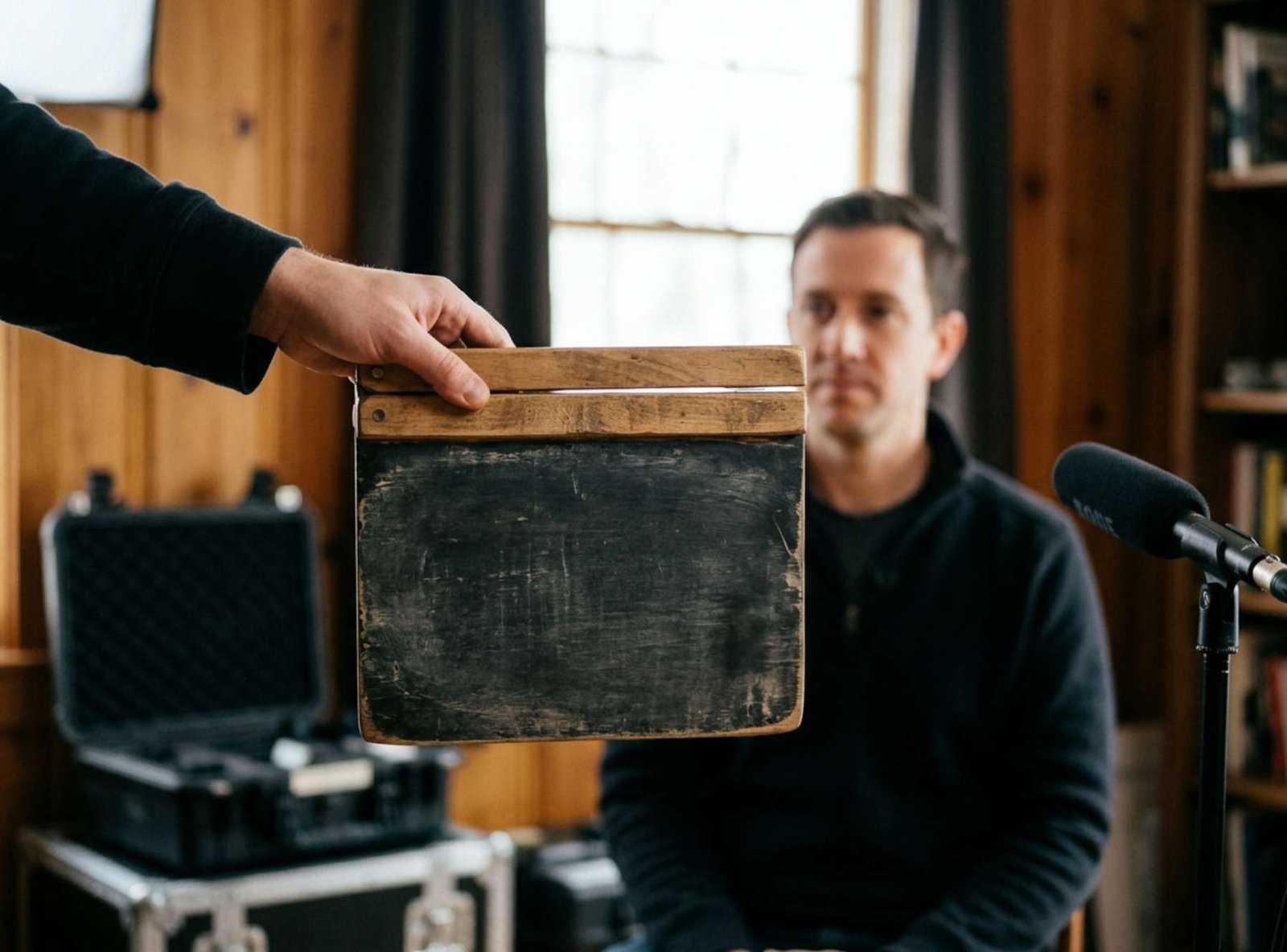
You line up the first clap in a ten-minute interview. The speaker’s hands meet, the clap sounds, and the opening sentence looks right. Nine minutes later, you see the speaker close their mouth before you hear the last word. Moving the audio earlier fixes the ending and spoils the opening.
The second clap tells you something the first one cannot. One clap gives you a position. Two claps, separated by most of the recording, also give you a duration. Compare how much time passes between them in the picture and in the audio. That measurement tells you whether to move the track, adjust its speed, or look for a break in the recording.
Mark the same event in the picture and the sound
If you are recording a new take with a camera and a separate microphone, let both devices run. Clap once on camera before you begin speaking, then clap again before you stop recording. Keep your hands clearly visible and clap in roughly the same position both times.
For existing footage, find two actions you can both see and hear. A pen landing on a desk can work. A smile followed by a laugh is a poor reference because the two events need not begin together. If the camera recorded its own sound, keep that track available as a guide while aligning the external recording.
In your editor, enlarge the audio waveform and step through the picture one frame at a time. Mark the first frame where the hands meet. On the separate audio track, mark the start of the sharp clap sound. A loud echo can create a second peak, so use the same part of the sound at both ends. In Premiere, you can align clips manually in the timeline or use Clip → Synchronize when both recordings share a recognizable sound. Adobe’s timeline synchronization guide
Before editing, check a short export through wired headphones or the device’s own speaker. If the exported clap matches the picture there and the delay appears only through one playback setup, investigate that setup first. Moving the track would change the file for every viewer.
When the sound is late by the same amount
Suppose the clap near the beginning sounds three frames late. The clap near the end also sounds three frames late, and a visible desk tap in the middle has the same delay.
At exactly 30 frames per second, three frames equal one-tenth of a second. Move the external audio three frames earlier while leaving the video in place. If the clap sounds before the hands meet, move the audio later instead. Work on a duplicate sequence so you can compare the adjustment with the original.
Play the three reference points again. Then listen to a whole spoken sentence with the camera’s guide track muted. Leaving both microphones audible can produce a doubled voice and make the corrected track harder to judge. Once you are satisfied, keep the picture and the corrected audio together during subsequent edits. Premiere lets you link selected clips in the timeline. Adobe’s guide to linking clips
When the delay grows throughout the take
Now imagine that you have aligned the opening clap and the ending still sounds late. Write down the elapsed time from clap to clap in each recording. The files may have different amounts of silence at the start because someone pressed Record on one device first. Comparing the full file lengths would include that extra silence.
Here is a worked example using illustrative timings:
| Measurement | Picture | Separate audio |
|---|---|---|
| Time between the two claps | 600.00 seconds | 600.60 seconds |
The audio takes 0.60 seconds longer to reach the same event. On a 30 fps timeline, the gap at the end is 18 frames. Check a visible action around the middle. If the sound is about nine frames late there, the measurements fit a roughly steady drift.
For a speed control where 100% means normal playback, divide the current audio interval by the desired video interval, then multiply by 100:
600.60 ÷ 600.00 × 100 = 100.10% playback speed
The direction matters. The audio takes a little too long, so it needs to play a little faster. Enter 100.10% as the new speed. A field that asks for the percentage change instead would take +0.10%.
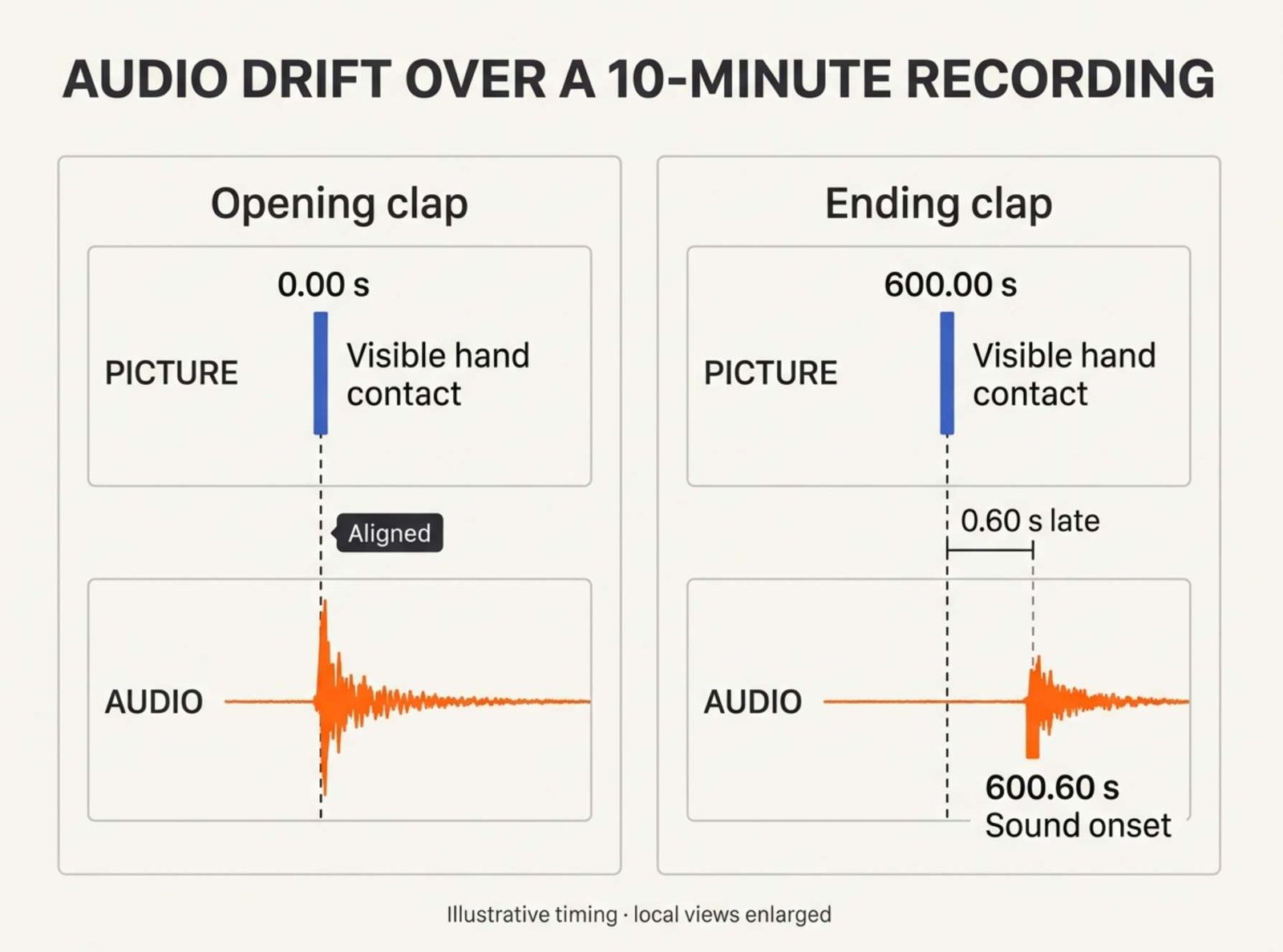
In Premiere, select only the external audio clip, open Clip → Speed/Duration, enter the speed, and select Maintain audio pitch. Apply the correction to the continuous take. If the audio includes a lead-in before the first clap, realign that clap afterward because changing the speed also changes the length of the lead-in. Adobe’s Speed/Duration instructions
The value above belongs to this example. Measure each take you intend to correct. After the adjustment, check the opening, middle, and ending again, then listen for any change in the quality of the voice.
When the delay begins at one particular cut
A recording can match at the beginning and miss at the end for another reason. Suppose the speaker is in sync immediately before a cut at four minutes. Immediately after it, the voice is six frames late. It stays six frames late for the rest of the shot.
In that case, changing the speed across the whole take would disturb the first four minutes. Zoom in around the cut and compare the edit points on the picture and audio tracks. Look for an extra gap, an audio edit that landed on a different frame, or a piece of picture removed while the separate audio remained in place.
On a duplicate sequence, correct the affected section and play across the join. Listen to the full word on each side and check that the fix has preserved the speaker’s sentence. If you cannot identify a matching action near the cut, use the camera’s guide audio or return to the original take before trimming dialogue.
Check the version viewers will hear
Export the corrected sequence and open that file in a separate player. If the claps will be trimmed from the published video, first make a review export with them included. Then check visible speech near the beginning, middle, and end of the finished cut.
If the file plays correctly but the editing preview still sounds late, you have kept the viewer’s copy in sync and narrowed the remaining issue to playback. If the exported ending still drifts, go back to your two marked events. The most productive next check is the interval between them and whether the middle of the take follows the same pattern.