
You update a downloadable checklist, upload the corrected PDF to WordPress, and change the download button in your article. Everything looks finished.
Then someone opens the link from last week’s newsletter and gets the old document.
The problem is easy to miss: updating a button changes where that button leads. It does not necessarily replace the file that other people already have a link to.
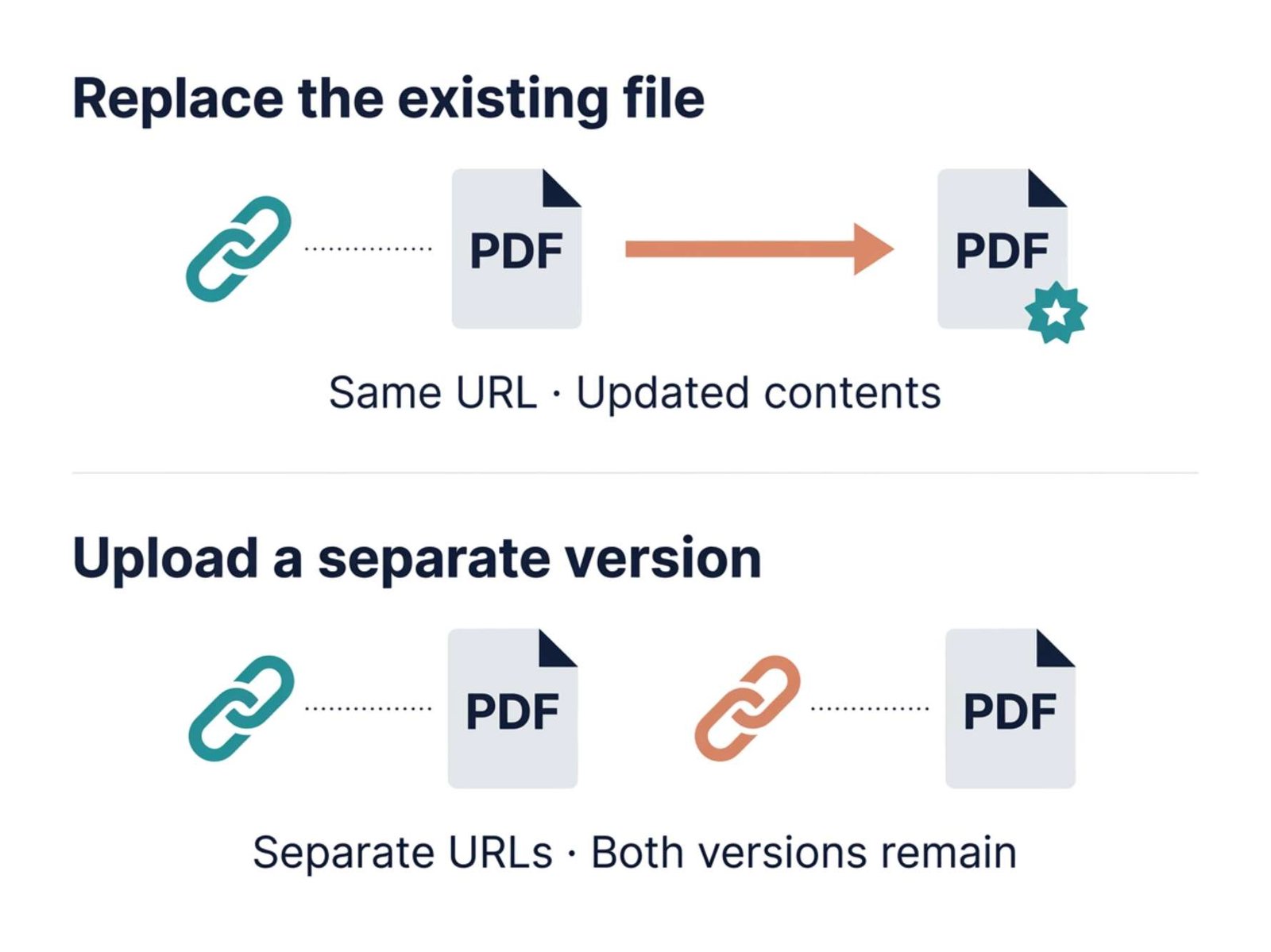
Before uploading a revised PDF, decide what should happen when someone opens the existing file URL. Should they receive the latest document, or should that address continue to show the original edition?
That decision determines how to handle the update.
A Checklist, Two Files, and One Unexpected Problem
Consider this illustrative example.
A blog offers a three-page video preparation checklist. After publishing it, the owner notices that the checklist is missing a reminder to record a short audio test.
The original file lives at:
https://example.com/wp-content/uploads/2026/10/video-checklist.pdf
The owner adds the missing reminder and uploads the revised document through the Media Library.
A normal upload creates a separate media item. If the filename conflicts with an existing file in the destination folder, WordPress can add a number, producing a name such as video-checklist-1.pdf. Uploading in a different month can also produce a different path. WordPress explains how media URLs and duplicate filenames work.
The new file is now available, but the original URL still matters. It may appear in a newsletter, a saved bookmark, another article, or a reader’s message.
For this checklist, the missing reminder is a correction to the same resource. Keeping the original address and replacing its contents is a reasonable choice.
A dated report would be different. Someone linking to a “2025 Survey Report” probably expects that edition to remain available, even after the 2026 report is published.
| What changed? | Suggested approach |
|---|---|
| A typo or missing instruction in a current checklist | Replace the existing PDF while keeping its URL |
| A new annual edition that readers may need to compare | Upload a separate file with a clear edition name |
| One article needs a different download, while other articles should keep the original | Change the file selected in that article |
| The original PDF must remain available as a historical reference | Preserve it and publish the update separately |
These are editorial choices. A replacement tool cannot decide which version your readers should receive.
Save the Original Before Replacing It
Keep a local copy of both PDFs and confirm that you have a current site backup covering the database and uploaded files.
Use filenames that are easy to distinguish on your computer:
video-checklist-before-update.pdfvideo-checklist-revised.pdf
Open the revised PDF before uploading it. Check the corrected instruction, page order, clickable links, and any text near page edges. Confirm that you exported the final document rather than an earlier draft.
For the checklist example, add a modest version note inside the document:
Updated October 27, 2026 — added an audio-test reminder.
A visible date or revision note also gives you something specific to check after replacement.
Do not assume the replacement plugin will retain an undo copy. ShortPixel states that Enable Media Replace does not back up the previous file as part of its replacement process. Read the developer’s explanation of original-file removal.
Replace the Existing PDF at Its Current Address
For a WordPress site where you can install plugins, Enable Media Replace by ShortPixel provides a replacement option in the media editing screen.
Use the current version from the WordPress plugin directory.
- Open Plugins → Add New Plugin, search for Enable Media Replace, and install and activate the plugin by ShortPixel.
- Go to Media → Library and locate the original PDF.
- Open its editing screen and copy its File URL somewhere you can compare it later.
- Select Replace Media and choose the revised PDF from your computer.
- Choose Just replace the file, or the equivalent same-name replacement option shown in your interface.
- Confirm the replacement.
The basic replacement option keeps the existing filename and requires the replacement to be the same file type. For this example, that means replacing a PDF with another PDF. See Enable Media Replace’s official documentation.
Afterward, compare the file URL with the address you saved. They should match for this workflow.
Be careful about which address you copy. WordPress distinguishes the media attachment page from the direct file URL. For a downloadable PDF, use the File URL field. Changing a media title or attachment-page slug is not the same operation as replacing the PDF itself. WordPress’s media editing documentation explains these fields.
Why “Update All Links” Needs a Closer Look
The plugin also offers a mode that replaces the file, adopts the new filename, and updates links.
That option serves a different purpose: the file’s URL changes, and the plugin searches supported database content for references to update. The developer describes this distinction in its explanation of the two replacement options.
A WordPress plugin cannot rewrite a newsletter that has already arrived in someone’s inbox or a bookmark stored on their computer.
If preserving previously shared direct links is the goal, choose the replacement mode that preserves the original address. A filename change should be an intentional decision, with a separate plan for old links if they still need to work.
Check the Download as a Reader
A successful upload message is only the first check.
Start with the original URL you saved before the replacement. Open it directly and look for the revision note or corrected instruction.
Next, visit the public article and use its download link. Download the PDF again and open that newly downloaded copy. Avoid accidentally inspecting the old file already sitting in your Downloads folder.
For the example checklist, the verification is specific:
- The direct URL matches the original address.
- The document includes the audio-test reminder.
- The revision date is correct.
- All three pages are present.
- The article’s download link opens the revised document.
If the old PDF still appears, check caching before uploading more copies. A browser, hosting service, or CDN may retain the previous response. Refresh the browser and, where your caching service supports it, purge the exact PDF URL.
A private window can help identify a browser-specific issue, but it does not bypass a hosting or CDN cache. The plugin developer also identifies caching as a common reason replaced media appears unchanged. See its replacement troubleshooting guidance.
Replacing a hosted PDF also cannot alter copies that people previously downloaded. If the correction affects an important instruction, explain the change on the download page so returning readers can recognize that they need a fresh copy.
When You Only Need to Change One Article
Sometimes keeping the old file is exactly what you want.
Perhaps one beginner tutorial should offer a shorter checklist, while an advanced tutorial should keep linking to the detailed version.
In that case, edit the relevant article, select its File block, and use Replace to choose or upload the appropriate document. Save the article and test its public download link. The File block supports replacing the selected file within the block. See the official File block guide.
This changes the download used in that article. Treat replacing the original Media Library file as a broader action, because other links to that same file may also receive its new contents.
Give Frequently Updated Downloads a Home
For a resource you expect to revise regularly, consider creating a dedicated page such as:
https://example.com/video-checklist/
That page can explain what the checklist includes, show its revision date, and provide the current download.
Share the page address in future newsletters and social posts. When the PDF changes, readers can still arrive at the same page and see the current version and any correction notes. WordPress also recommends a page as a stable sharing destination for replaceable media. Read its guidance on reusing file links.
For the checklist in our example, a short update note would be enough:
The checklist now includes an audio-test reminder. If you downloaded an earlier copy, download the updated PDF below.
That gives readers the information a silent file replacement cannot: what changed, and whether they need to download it again.