
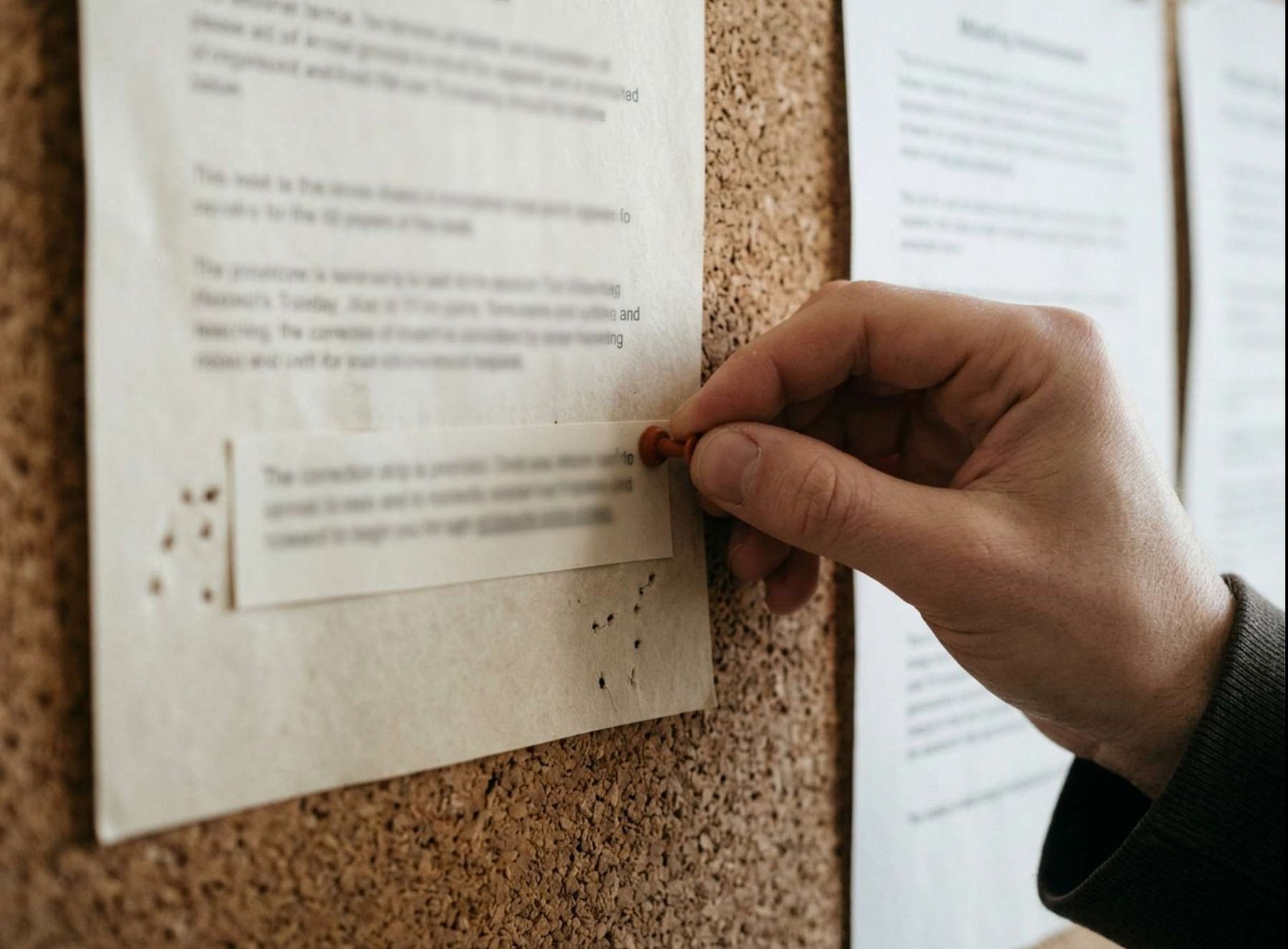
The first comment under your new post is not about the article.
“Is this the right link?”
You open it and discover that your caption promotes a video tutorial, but the link leads to an unrelated page. Or perhaps the link is fine and a reader has spotted a wrong number in the graphic.
The mistake is already public. What matters now is making the correct information easy to find.
Not every error needs the same response. A spelling mistake may need a quick edit. An inaccurate instruction may need a visible correction. A misleading image may require a replacement post if the platform does not let you change the uploaded media.
The examples below are constructed situations showing how those decisions can work.
First, Separate an Error from a Change
Before editing, establish what actually happened.
If you announced a workshop for Thursday when it was always scheduled for Friday, that is a correction. If the organizer moved the workshop from Thursday to Friday after your announcement, that is an update.
The difference is worth preserving.
“Correction: We published the wrong date” acknowledges an error in the original post.
“Schedule update: The workshop has moved to Friday” explains that the underlying information changed.
Similarly, a software guide can become outdated after an interface update without having been wrong when published. Readers need the current instructions, but describing the situation accurately helps them understand why the earlier version differs.
Do not rush into rewriting until you have checked the replacement fact against the original source.
Situation One: The Caption Is Right, but the Link Is Wrong
This is usually a problem with the route to the content.
Start by opening the intended destination yourself. Confirm that it is the correct article, that the page loads, and that its title matches what the post promises.
Then edit the link if the platform and post format allow it.
For example, LinkedIn lets you edit a shared post’s text through More → Edit post → Save. However, its documentation says that changing a URL does not generate a new preview image in the existing post. Uploaded media also cannot be replaced through a text edit. LinkedIn’s post-editing instructions
That means replacing the written URL may not resolve every visible part of the mistake. Inspect the preview card too.
A short correction could say:
Link corrected: This post previously linked to our audio guide. It now links to the video-compression tutorial described above.
If someone reported the problem, reply to that comment:
Thanks for pointing it out. I added the wrong link and have now corrected it.
This response tells the reader what happened and what you did. It does not require a long apology or a defensive explanation.
If the post still displays an unrelated preview that you cannot repair, consider replacing it with a clean version. Explain the replacement when the original has already attracted discussion, and check the new post before directing readers to it.
Situation Two: A Tip Contains an Incorrect Fact
Now the problem affects what someone might learn or do.
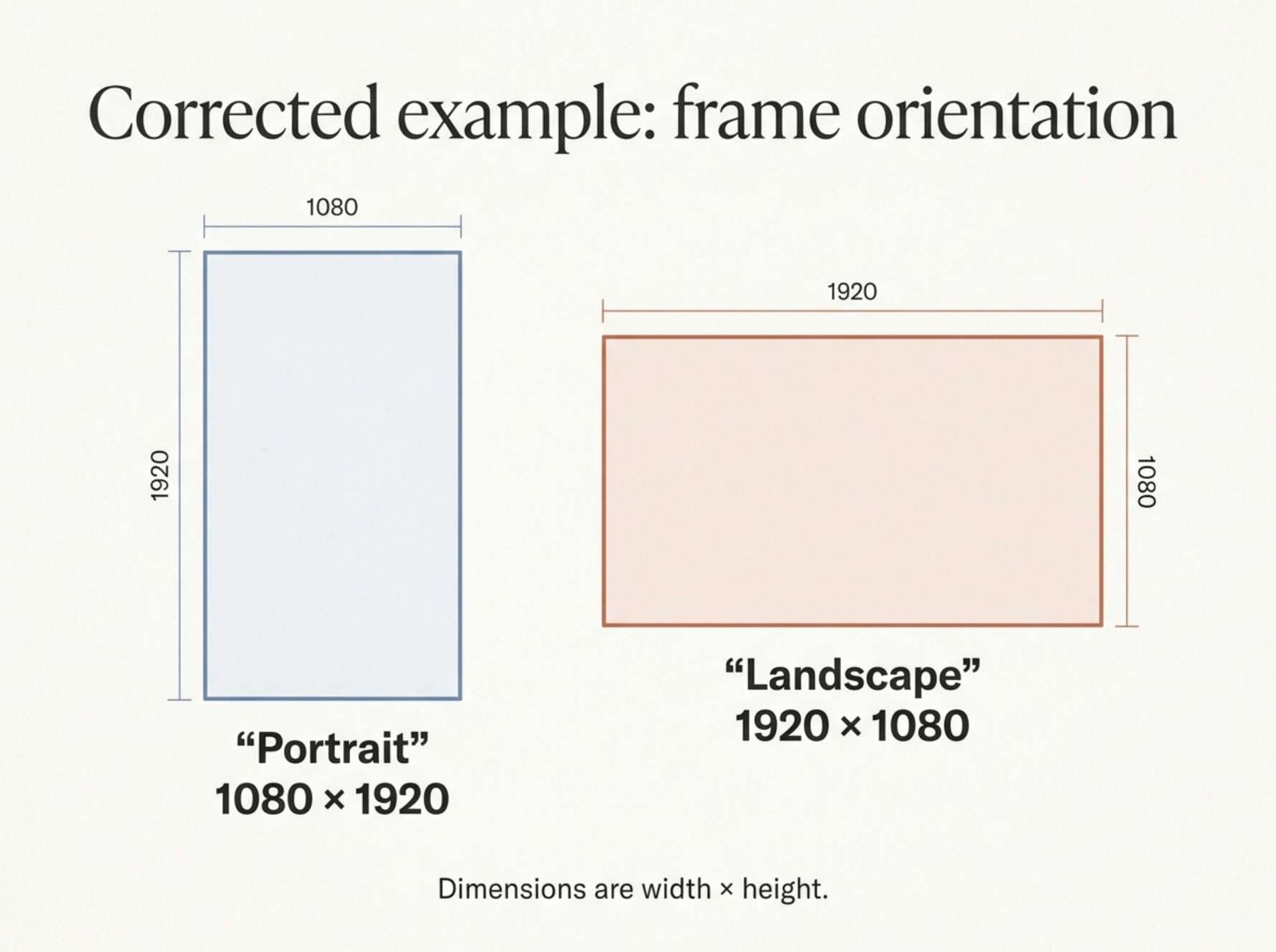
Suppose you publish a graphic describing 1080 × 1920 as a landscape frame. A reader correctly points out that the dimensions describe a portrait frame when written as width × height.
Simply changing “landscape” to “portrait” repairs the sentence for future readers. It does not tell earlier readers that the instruction changed.
For a factual error like this, add a correction near the affected information:
Correction: The original version reversed the orientation labels. A 1080 × 1920 frame is portrait; a 1920 × 1080 frame is landscape. Dimensions are listed as width × height.
Then correct the underlying text or artwork where possible.
This note does three jobs: it identifies the error, states the correct information, and removes a possible ambiguity about the order of the numbers.
Compare that with:
Updated for clarity.
The shorter phrase does not tell anyone whether you fixed punctuation or reversed the meaning of the advice.
You do not need a public correction note for every harmless typo. But when an edit changes an instruction, number, date, price, or eligibility condition, readers benefit from knowing what changed.
If the same mistake appears in the linked article, fix that page as well. Otherwise, the social post and the destination will continue to contradict each other.
Situation Three: The Error Is Inside the Image or Video
This is where editing only the caption can become inadequate.
Imagine the caption now says “portrait,” but the image still presents the wrong orientation label in large letters. Someone can save or share the image without carrying the correction beside it.
The visual needs attention too.
Check what the platform permits for that particular format. Do not assume that editing a caption also lets you replace the photo, video, or document.
LinkedIn, for example, distinguishes editable post text from shared media that cannot be replaced. Its documented route for changing that media is to delete the original post and create a new one. LinkedIn’s media-editing limitations
Before removing an inaccurate post, retain a private record of what you are correcting and any useful discussion you need to follow up on. Then publish the accurate replacement with a brief explanation:
Corrected graphic: The previous version had the portrait and landscape labels reversed. This version fixes those labels.
If you leave the original visible temporarily, place a prominent correction in its editable text and point to the replacement. A comment can provide additional context, but do not rely on every reader opening the comments.
Removing the original does not guarantee that screenshots or downloaded copies disappear. The replacement should therefore be understandable on its own, including the correct information rather than only saying “see our earlier update.”
Put the Correction Where the Error Was Visible
Think about how a reader encountered the mistake.
If it was in the first sentence, do not hide the correction after a long block of hashtags. If it was in a carousel, identify the affected slide. If it was spoken in a video, explain which statement was wrong and provide the corrected information.
A useful correction note can be only two sentences:
The original post stated [incorrect information]. The correct information is [verified information], and we have updated [the affected text, link, or graphic].
Use that structure as a guide, not a form you must fill out mechanically.
For a wrong date, include enough detail to prevent another misunderstanding. “Friday at 6” may still leave the month, year, and time zone unclear. Use the full relevant date and time zone when the event’s audience needs them.
For a wrong software instruction, name the setting or action that changed. “The instructions have been fixed” gives a reader less help than “Choose Fit rather than Fill when you need to keep the entire frame visible.”
The correction should help someone recover from the original mistake.
Repair the Other Copies You Control
A post rarely exists in only one place.
You may have adapted the caption for another network, placed the same image in a Story, or scheduled the message to appear again next week. Correcting the published post does not establish that those other copies are accurate.
Search your own drafts and scheduling queue for a distinctive phrase from the error. Check the source graphic and the linked article. If a colleague prepared another version, tell them exactly which fact changed.
For this task, a small internal note is enough:
Orientation labels corrected in the source graphic, published caption, and scheduled follow-up. Replacement image checked on mobile.
Record completed actions rather than assumptions. If you have not checked the scheduled copy yet, leave it marked as outstanding.
You do not need to repost the correction repeatedly to unrelated audiences. Focus on the channels where you published the inaccurate information and the people who directly raised it.
Keep the Reader’s Comment in Context
A reader who identifies an error has supplied information you can use.
Before replying, verify their point. If they are correct, acknowledge the specific issue. If they have misunderstood the post, explain the distinction without pretending you made a correction that was unnecessary.
Avoid turning a factual correction into an argument about whether the mistake was important enough to mention.
Also avoid silently rewriting the post so that a reasonable earlier comment suddenly appears foolish. When the correction changes the meaning, a visible note preserves context for anyone reading the conversation later.
You can still moderate spam or abuse according to your usual rules. A valid criticism does not become spam because it is inconvenient.
Reopen the Post Before Calling It Fixed
After saving, leave the editing screen and view the published post.
Read the caption, inspect the image, and follow the link. Confirm that the corrected version does not introduce another inconsistency.
On a replacement post, check the uploaded file itself. A corrected filename does not prove that you selected the corrected image.
If another person is available, ask them what the post now tells them to do. This is particularly helpful for instructions and dates, where wording that seems obvious to the author can remain ambiguous to everyone else.
The goal is a reader who can identify the accurate information without reconstructing the entire conversation. A clear correction makes that possible.