
Someone reads a helpful comment you left on LinkedIn and opens your profile. They discover that you run a blog, but choosing where to start takes another search.
Your Featured section can give that visitor a more direct route. A small selection of articles, each with a clear purpose, helps people recognize which page answers their question.
LinkedIn allows you to feature external links alongside other work samples on your personal profile. The examples below use that feature to introduce a blog’s existing tutorials. LinkedIn’s Featured section FAQ
Choose a reader before choosing the articles
A blog can cover several subjects while a particular visitor has one immediate problem.
Suppose your intended reader runs a small WordPress website. They publish their own content, make occasional design changes, and handle technical problems as they arise.
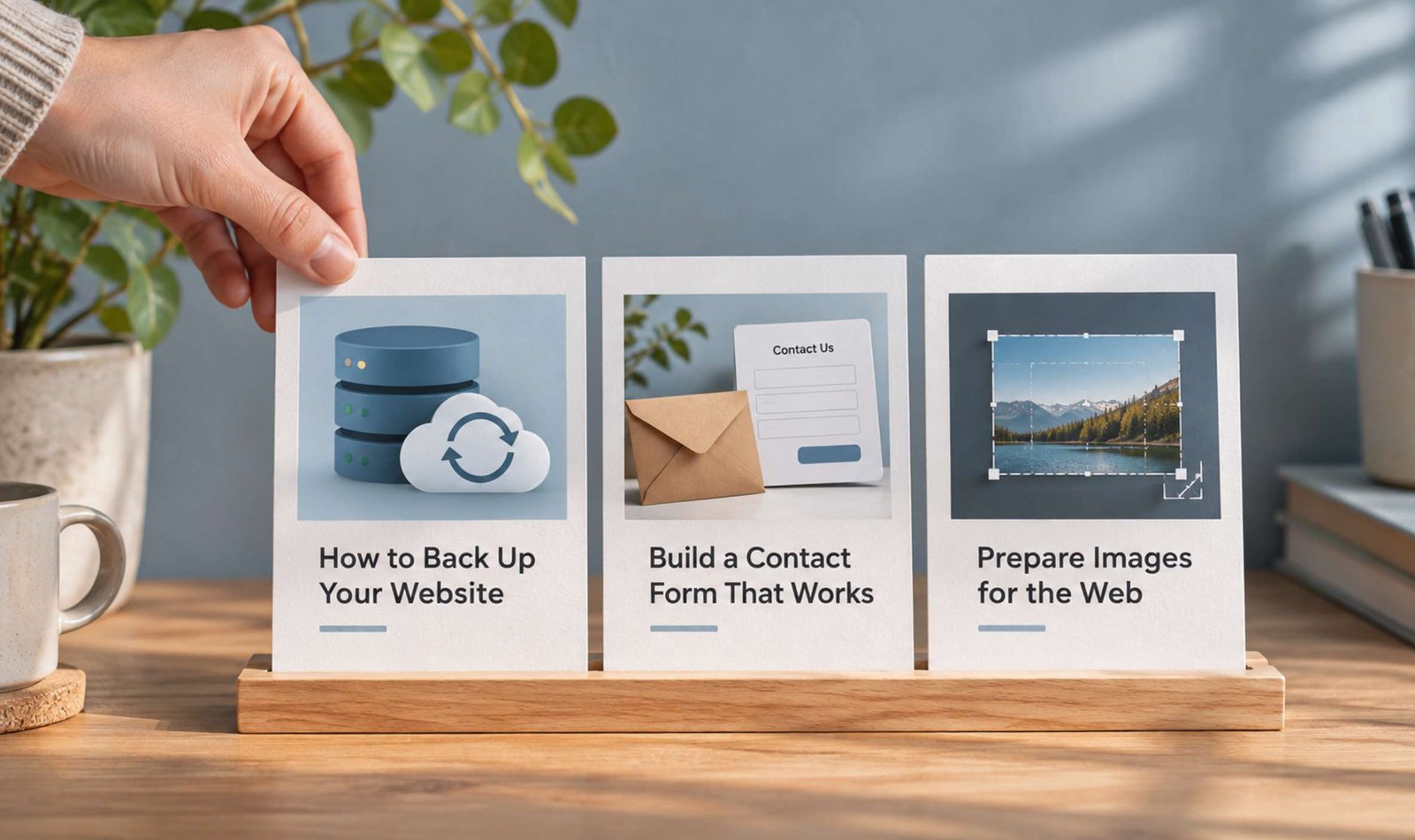
Three articles could offer them practical starting points:
- A backup and restoration guide for preparing to change the site.
- A contact-form troubleshooting guide for investigating missing enquiries.
- An image-optimization guide for preparing pictures before publication.
Each article serves a different situation. Together, they also show the type of help your blog provides.
This is an illustrative editorial selection. Choose articles that you have already published and checked. Three is a manageable starting choice for this exercise, rather than a platform limit or a promise of better performance.
Before selecting an article, open it and read the part that delivers its main promise. If you plan to feature a guide about restoring a backup, make sure the page actually explains restoration. A broad overview with a short paragraph about backups would need a narrower card description.
Also consider what the reader needs before starting. A tutorial that assumes access to a paid service should make that requirement easy to discover.
Write the cards around specific tasks
Labels such as “My blog,” “Latest article,” and “Useful tips” provide little information about the destination.
A Featured card has a more useful job when it names the task and explains what the reader can expect after clicking.
Here are sample titles and descriptions for the three articles in our example.
Card 1
Title: Back Up WordPress Before Making Changes
Description: Prepare a backup of your site’s files and database, then understand the restoration process before changing your theme or plugins.
Card 2
Title: Contact Form Says Sent, but No Email Arrives?
Description: Check the recipient, sender settings, delivery path, and reply address with a traceable test message.
Card 3
Title: Prepare Blog Images Before Uploading Them
Description: Follow a workflow for choosing image dimensions, reducing file size, and checking that important details remain clear.
The descriptions name what the pages teach. They also give visitors a reason to choose one card over another.
Keep the connection between card and article easy to recognize. You can shorten a long article title for the card, but the destination should clearly address the same subject.
For example, a card titled “Fix Every WordPress Email Problem” would promise more than a guide focused on Contact Form 7. “Check Why Contact Form Emails Are Missing” gives the reader a more accurate expectation.
Add the links to your personal profile
On desktop, open Me → View Profile. Select Add profile section → Recommended → Add Featured.
Use the Add icon in Featured, choose the link option, and enter the public URL of the article. Follow the prompts, review the card, and save it.
For an existing Featured section, use its editing controls to manage the items. LinkedIn documents options for editing sample titles and descriptions and for reordering the selection. Reordering requires at least two featured items. LinkedIn’s instructions for managing Featured content
Use the public article address copied from the published page. A WordPress editing URL or draft-preview link can lead visitors somewhere they cannot access.
After adding a link, inspect the resulting title and image. If the preview presents the wrong topic or an old headline, resolve that mismatch before relying on the card to introduce the article.
Put the most useful starting point first
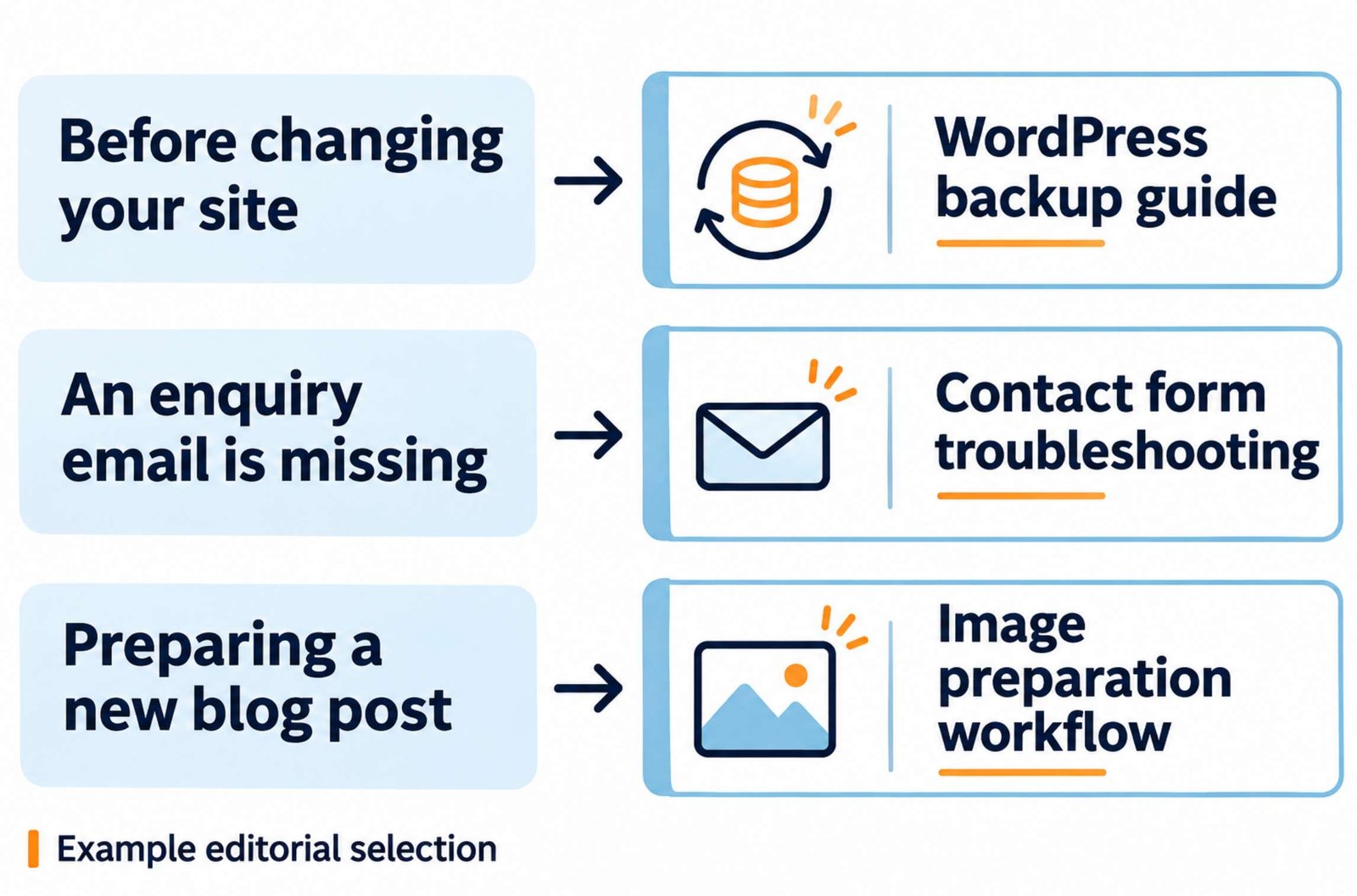
For the small-site-owner example, the backup guide is a reasonable first item. It addresses preparation for several common maintenance tasks.
The contact-form guide can follow because it solves a specific operational problem. Image preparation then offers a routine publishing task.
A different audience would justify a different order. If most people find your profile through your video-editing discussions, a relevant video guide may be the better opening item.
LinkedIn says newly featured content appears first by default, so review the order whenever you add something. LinkedIn’s Featured section FAQ
Give the first card enough context to make sense by itself. Avoid descriptions such as “Read this next” or “The second part of my process” unless the title clearly identifies the process and its prerequisites.
You can make the selection feel coherent through consistent image treatment, while giving each card a distinct subject. A backup diagram, an email-delivery diagram, and an image comparison would help distinguish our three example articles.
Keep any essential wording in the card’s text fields. Small labels embedded in a thumbnail may be difficult to read.
Check the experience from the visitor’s side
Once the cards are saved, inspect them on both desktop and a phone.
Start with the visible card. Can you identify its subject without opening it? Does the description explain the benefit? Is the image recognizable at that size?
Then follow the link and check the destination:
| Check | What to look for |
|---|---|
| Page identity | The article heading clearly matches the card’s subject |
| Access | The article opens without a WordPress login |
| First screen | The reader can identify the promised tutorial |
| Instructions | The relevant steps are easy to locate |
| Images | Important details remain readable on a phone |
| Links | Supporting resources open the intended pages |
Where possible, ask someone who is signed into LinkedIn to inspect the profile from their account. Give them a task such as “Find the article that would help you investigate a missing contact-form email.” Watch whether the card labels help them choose.
LinkedIn’s documentation says viewers must be logged in to see Featured content, and visibility restrictions on featured posts still apply. An external article also needs its own accessible public page. LinkedIn’s visibility guidance for Featured content
Review the selection when the articles change
Featured links need attention after you rename, move, or substantially revise an article.
A card can continue to promise an old workflow even when the destination has been rewritten. A previously useful tutorial may also become less suitable for new readers if its software instructions are outdated.
Keep a short record of the card title, destination URL, and last review date. Revisit it when you update a featured article.
When choosing a replacement, ask what new reader question it answers. Adding every new post makes the selection harder to maintain and gives you less reason to think about the order.
For our example, the final check is straightforward. A visitor preparing to change a website can find the backup guide. A visitor investigating missing enquiries can find the contact-form guide. Someone preparing an article can find the image workflow. Each card gives them a clear next step and leads to a page that delivers it.