
The slide looks finished. The headline fits, the colors match your website, and every useful detail has made it onto the canvas.
Then you open the exported image on your phone.
The explanation is tiny. The screenshot labels are barely visible. A decorative shape takes up more room than the instruction it surrounds.
This is a common problem when designing social media carousels: the editor gives you a large workspace, while the reader sees a much smaller image.
The solution starts before choosing a font. Decide what each slide needs to help the reader understand, then check whether that information survives at its actual viewing size.
Let’s build a short carousel around a practical topic: checking a microphone before recording a tutorial.
Start with the Action You Want Someone to Take
“Audio tips for creators” is a broad subject. It could include microphones, room treatment, editing, background music, or recording software.
A short carousel needs a narrower task:
Record a short sample and listen to it before starting the full tutorial.
That gives the post a clear boundary. The carousel does not need to explain every audio problem. It needs to help someone perform one useful check.
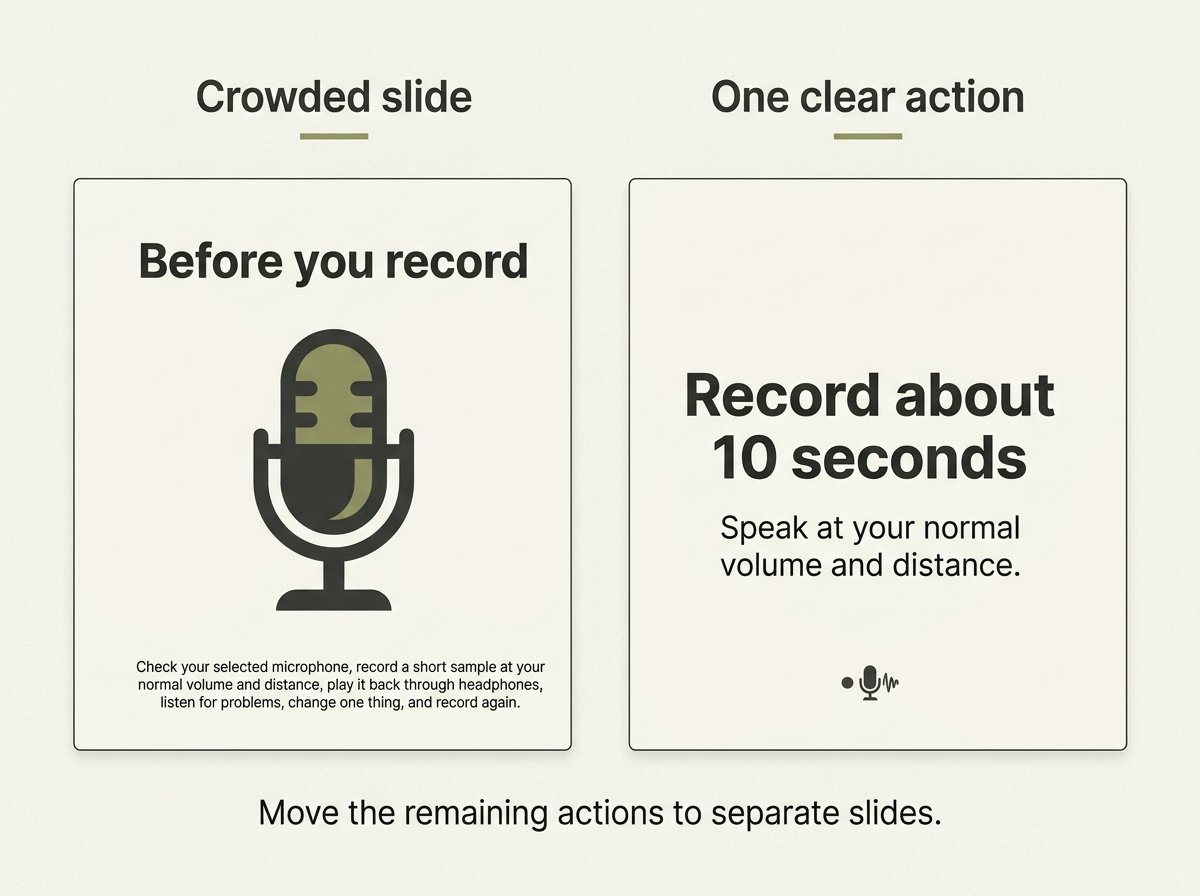
Here is a deliberately crowded draft:
Before recording your tutorial, check that your recording application is using the microphone you intended to select, record a short sample while speaking at your normal volume and distance, play the sample back through headphones, listen for missing speech, distracting background noise or distortion, and change one setting at a time before recording another sample.
The advice has a sensible sequence, but placing the entire paragraph on one image leaves the designer with an awkward choice: shrink the text or fill nearly every available space.
Instead, separate the sequence into a small set of cards.
A Five-Slide Version You Can Adapt
The following is an original editorial example. It illustrates a layout approach; it is not a published campaign or a claim about engagement results.
Slide 1 — Name the task
Check your microphone before recording
Make a short sample before starting the full tutorial.
The opening tells readers exactly what they will learn. It does not need a vague promise such as “This mistake is ruining your content.”
Slide 2 — Choose the input
Check the selected microphone
In your recording app, confirm that the input is the microphone you intend to use.
If you add a screenshot, show the relevant microphone selector with enough surrounding context to identify it. Label the application if the controls are specific to that software.
Slide 3 — Make the sample
Record about 10 seconds
Speak at your normal recording volume and distance.
Ten seconds is a practical starting point for this example, not a universal technical requirement. The purpose is to capture a representative piece of speech.
Slide 4 — Listen to the recording
Play it back through headphones
Check for missing speech, distracting noise, or distortion.
The important instruction is to listen to the saved sample. A moving audio meter alone does not answer every question about the recording.
Slide 5 — Check the adjustment
Change one thing, then record again
Compare the new sample before starting your full recording.
The last slide completes the task. A small invitation to save the checklist can sit below it, but the practical instruction should remain the most prominent element.
Five slides work for this example because the task fits that sequence. A different explanation may need three or seven. Choose the length after organizing the content.
Give the Main Instruction Most of the Space
A useful starting layout has three parts: a clear heading, a short explanation, and an optional visual that supports the explanation.
For Slide 2, the microphone selector is useful evidence. A large decorative microphone illustration adds atmosphere but does not show where to check the input. You may choose either treatment, but they serve different purposes.
Keep the heading and explanation in predictable positions across the carousel. Consistency helps readers find the next instruction without having to interpret a new layout on every swipe.
Use restrained numbering such as “2/5.” Leave space around the text and keep essential words away from the edges.
If a slide becomes crowded, edit its content before reducing the font size. Remove repeated phrases, move a secondary explanation into the caption, or give a genuinely separate idea its own slide.
Understand What Shrinking Does to Your Text
A large export does not automatically mean large text on a phone.
Consider a simple scaling example. An image is 1,080 pixels wide, and its text is designed at 48 pixels. If that image is displayed at 360 pixels wide, everything is reduced to one-third of its original size.
The text is therefore approximately 16 display pixels high in that simplified calculation:
48 × 360 ÷ 1,080 = 16
Text designed at 24 pixels would shrink to approximately 8.
This is a geometry example, not a recommended font-size standard. Actual readability also depends on the typeface, weight, spacing, app layout, and viewing conditions. Design applications may also use different units.
The practical lesson is to inspect the exported image at a realistic display size. Zooming into the design editor hides the problem you need to catch.
Check Contrast Where the Words Actually Sit
Text can be large enough and still difficult to read.
A pale heading over a bright photograph may disappear into part of the background. A thin gray font can look elegant on a large monitor while becoming faint on a small screen.
WCAG’s minimum contrast criterion specifies 4.5:1 for ordinary text and images of text, with a 3:1 exception for qualifying large text. For social graphics, aiming for at least 4.5:1 across informative text is a useful design baseline. Meeting that ratio alone does not establish that the whole post is accessible. W3C explains the contrast requirements.
Check the actual text and background colors with a contrast checker. If words sit over a photograph, a solid panel behind them makes the background easier to control.
Also avoid using color as the only explanation. Label comparison cards “Original” and “Revised,” for example, rather than expecting red and green borders to communicate the difference. This follows W3C’s guidance to provide additional cues when color carries meaning. Read the guidance on using color.
Let the Information Exist Outside the Images
A carousel made entirely of image-based text creates another problem: readers cannot necessarily adjust those words as they would ordinary text.
W3C recommends using real text where possible and providing equivalent text alternatives when words are presented as images. See its guidance on images of text.
For this example, include a complete text version in the post caption:
Before recording a tutorial, check which microphone your recording app is using. Record about 10 seconds while speaking at your normal volume and distance. Play the saved sample through headphones and listen for missing speech, distracting noise, or distortion. If something needs adjusting, change one thing and record another sample before starting the full tutorial.
Where the platform supports custom alternative text, describe each slide’s informative content. For a text-focused slide, preserve the instruction rather than writing only “blue graphic with a microphone.”
For Slide 3, a useful alternative could be:
Step 3 of 5: Record about 10 seconds. Speak at your normal recording volume and distance.
If a screenshot carries essential information, explain what it demonstrates as well. Do not assume that a decorative description communicates the instruction.
Review the Export, Then the Post Preview
Send the exported images to your phone and inspect them without enlarging them.
Read the smallest meaningful text. Check whether the instruction is still clear when the image is viewed at normal size. Then inspect the carousel in the destination app’s preview, paying attention to slide order and cropping.
Ask another person to use the sequence without your explanation. Instead of asking whether they like the design, ask:
“What would you do after reading this slide?”
If they miss the action, the problem may be the wording or hierarchy rather than the color palette.
Before publishing, confirm that:
- Every slide has a clear purpose.
- Essential text is readable at normal viewing size.
- Screenshots show the relevant control clearly.
- The slide order matches the instructions.
- The caption provides the complete text version.
- The final slide finishes the task.
For the microphone example, the reader should leave with a repeatable habit: choose the input, record a sample, listen, and check any adjustment. A carousel that communicates that sequence clearly has delivered something useful, even without elaborate graphics.