
You update an article’s featured image, paste its link into a social media post, and see the old picture again.
Changing the image a second time may not help. The platform could be reading a separate sharing image, receiving an older version of your page, or displaying information it saved earlier.
The most useful approach is to check those possibilities in order.
This guide covers link previews for articles on a WordPress website, using Facebook and LinkedIn as examples. You will learn where the preview information comes from, how to correct it, and how to test the result before sharing.
1. Separate the Post Text from the Link Preview
A social media post can contain several different pieces of content:
- The introduction you write in the post composer.
- The URL you paste.
- A preview card generated from the linked webpage.
- A photograph or other attachment you upload separately.
These are not interchangeable.
Editing your introduction does not change the title supplied by your website. Uploading a photograph to one social post does not correct the information other people receive when they share your article.
Before troubleshooting, identify the exact problem.
| What looks wrong | What to investigate first |
|---|---|
| Preview title | The page’s social title |
| Preview image | The page’s designated sharing image |
| Old title and image together | Saved platform data or an outdated page response |
| No preview | Page access, metadata, and image access |
| Image is correct but badly cropped | Image composition and preview proportions |
| Preview looks right but opens the wrong page | The shared URL and its redirects |
Take a screenshot of the problem and copy the exact URL you pasted. This gives you a consistent reference while making changes.
2. Understand Where Preview Information Comes From
Websites can provide social sharing information through Open Graph metadata.
You do not need to write this code manually to troubleshoot it. These labels are useful because inspection tools may show them:
| Property | What it identifies |
|---|---|
og:title |
The title supplied for sharing |
og:description |
A short description |
og:image |
The address of the sharing image |
og:url |
The page’s canonical identity in Open Graph |
These properties are defined by the Open Graph protocol.
A featured image in WordPress and an explicitly selected social image can be different. Likewise, the article heading and social title may differ.
That distinction explains a common situation: you replace the picture at the top of an article, but the social preview continues using a separately configured image.
Start by checking the sharing settings instead of repeatedly replacing the article’s visible image.
Also remember that metadata supplies information to the platform. It does not guarantee an identical card layout on every device or placement.
3. Check the Exact Public URL
Open the address you plan to share in a private browsing window.
Confirm that:
- It opens the intended article.
- It works without a WordPress administrator session.
- It does not lead to a draft preview, login screen, or error page.
- Any redirect finishes at the correct public address.
For example, a URL copied from an editor or preview screen may differ from the article’s published permalink.
Keep these addresses separate in your notes:
- The URL you pasted into the social platform.
- The final address after any redirects.
- The image URL reported by an inspection tool.
This prevents you from fixing the wrong resource.
If you use a link containing campaign parameters, check the normal article address first, then test the exact campaign link you intend to publish. Both should reach the correct content.
Do not rename the article’s permalink simply to escape an old preview. Fixing the page information and refreshing the preview is usually a more targeted repair.
4. Correct the Sharing Settings in WordPress
First identify which plugin or theme supplies your Open Graph information.
If you already use an SEO plugin with social settings, inspect those settings before installing another plugin.
Example: Yoast SEO
Yoast documents Open Graph settings under:
Yoast SEO → Settings → Site features → Social sharing
The Open Graph data option controls its output. Yoast also warns that conflicting output from multiple plugins can lead to incorrect sharing information. See its Open Graph setup instructions.
To change an individual article:
- Open the post in WordPress.
- Open the Yoast SEO sidebar.
- Select Social media appearance.
- Set the intended image, title, and description.
- Save or update the post.
These fields are covered in Yoast’s social appearance instructions.
If you use another plugin, locate its equivalent social sharing controls. The exact labels will differ.
Prepare a clear replacement
For an illustrative article about WordPress backups, you might use:
Social title:
How to Back Up WordPress and Check Your Restore
Social description:
Learn what a complete backup includes and how to test a restore before you need it.
Social image:
A relevant image of backup storage or a clearly labeled explanatory graphic.
The title and description should accurately represent the article. Replacing a broken preview with an exaggerated promise creates a different problem.
Do not depend on the description to explain an essential qualification. Some preview layouts may give it little space or omit it.
5. Check the Image Itself
A correctly selected image still needs to be accessible and suitable for a preview.
Open the image address reported by the inspection tool in a private browsing window. Confirm that it loads as the intended image without requiring a login.
This browser check is useful, but it does not prove that a platform’s crawler can access the same resource. Inspectors can reveal failures that your browser does not encounter.
For LinkedIn’s sharing module, its help documentation lists:
- Minimum dimensions of 1200 × 627 pixels.
- A recommended ratio of 1.91:1.
- A maximum file size of 5 MB.
LinkedIn also notes that protected images or website blocking can prevent an image from appearing. See its website sharing requirements.
A 1200 × 630 image is a practical starting canvas close to that ratio. Still inspect the actual result on each platform.
Keep important subjects and lettering away from the edges. A picture with a title pressed against its border is vulnerable to cropping.
If replacing an image leaves uncertainty about which file is being served, upload the corrected version under a new filename and select it in the social image field. For example:
wordpress-backup-social-v2.jpg
This makes the replacement easy to identify. It does not remove the need to refresh the page’s preview data.
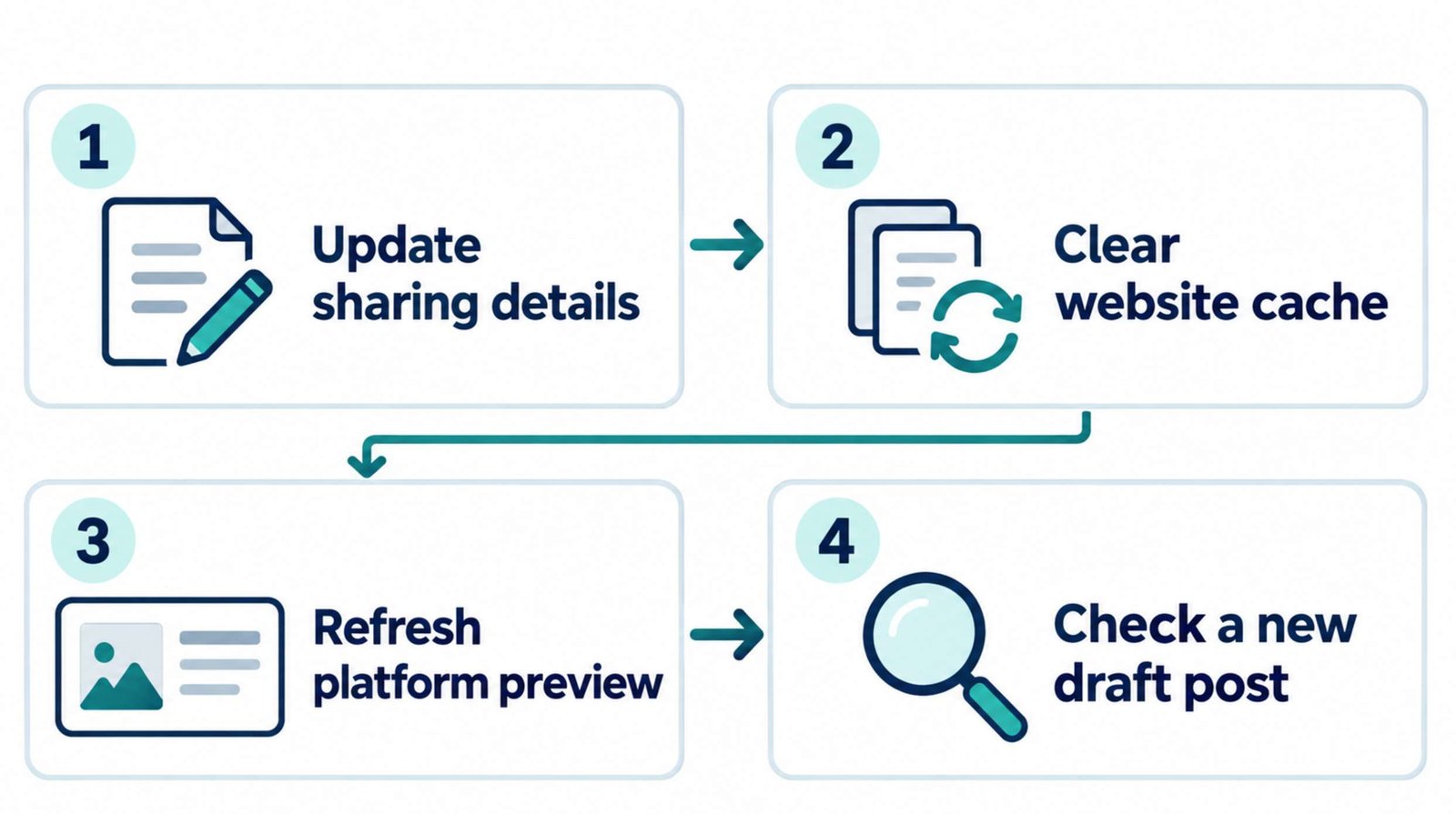
6. Clear Your Website’s Relevant Cache
Two different systems may be holding older information:
- Your website, hosting service, or content delivery network.
- The social platform.
Refreshing the social platform first may simply cause it to retrieve the same outdated version from your website.
After saving your changes, clear the relevant page cache through the caching system your site uses. If an image was overwritten at the same address, its cached copy may also need attention.
You do not need to disable every performance feature on your site. Use the available purge controls for the affected content.
Then check the public page again.
For a more detailed check, open the page source in a desktop browser and search for og:title and og:image. Compare the values with the title and image you intended to publish.
If the source still points to the old image, continue investigating the website settings or cache. Asking Facebook or LinkedIn to refresh cannot correct information your site is still supplying incorrectly.
7. Refresh Facebook’s Preview
Once the public page supplies the correct information, use Facebook’s Sharing Debugger. You may need to sign in.
- Enter the article URL.
- Select Debug.
- Review the information and preview.
- Select Scrape Again to request a fresh retrieval.
- Check the updated result.
Yoast documents this workflow for troubleshooting its Facebook sharing output in its Facebook preview guide.
If the image remains wrong, compare the image URL shown by the debugger with the image you selected in WordPress.
That comparison helps narrow the problem:
- The debugger reports the old image URL: inspect the page’s output and caching.
- It reports the correct URL but cannot retrieve the image: investigate image access.
- It retrieves the correct image but the crop looks poor: revise the composition.
If the tool provides raw tags, use them to see what Facebook actually received.
After the debugger shows the intended result, create a fresh draft post and paste the link again. Check the composer before publishing.
Treat refreshing the URL and repairing an already published post as separate tasks. Inspect any existing post individually rather than assuming it has changed.
8. Refresh LinkedIn’s Preview
Use LinkedIn Post Inspector for LinkedIn.
Enter the URL, inspect it, and confirm that the preview information is correct.
LinkedIn explains that a previously shared URL may use an older cached image. Its inspector can refresh that information for future sharing. However, the change applies to new posts; existing posts containing the URL retain their previous preview. See LinkedIn’s Post Inspector instructions.
After inspection:
- Open a new post composer.
- Paste the exact URL you plan to share.
- Allow time for the preview to appear.
- Review the image and title together.
LinkedIn describes preview generation in its guide to sharing articles and links.
If an existing post has the wrong image, decide how important the error is before deleting anything. A repost starts a separate conversation and does not preserve the original post’s comments.
For a minor visual issue, correcting future shares may be sufficient. A materially misleading preview may require a more visible correction.
9. Investigate Conflicts When the Wrong Information Returns
Suppose you save the correct social title, clear the cache, and refresh the inspector. The old title still appears.
Check whether more than one component generates sharing metadata:
- Your SEO plugin.
- Your theme.
- A social sharing plugin.
- A custom code snippet.
Use one intended source for the relevant Open Graph output. If a second component has its own Open Graph switch, disable that overlapping feature rather than automatically removing the entire plugin.
Multiple og:image entries are not inherently invalid; Open Graph supports multiple images. The issue is conflicting or unintended output, such as an old site-wide image appearing alongside your chosen article image.
If a platform cannot retrieve the page, collect the error before changing settings. Give your hosting provider the affected page URL, image URL, platform, and inspection time.
Ask them to investigate the specific access failure. Broadly disabling site protection is not a useful first troubleshooting step.
10. Verify the Complete Sharing Experience
Finish by checking what the reader receives.
Open a fresh draft on each platform and confirm that:
- The preview identifies the correct article.
- The image is relevant and readable.
- The title matches the article’s promise.
- The link reaches the intended public page.
- The article opens comfortably on a phone.
For recurring work, keep a short record:
| Check | Record |
|---|---|
| Shared URL | Exact address used |
| Social title | Approved wording |
| Sharing image | Filename or URL |
| Facebook check | Date and result |
| LinkedIn check | Date and result |
This is particularly useful when several people maintain the same website.
For future articles, review the sharing information after the page is publicly available and before promoting it. When you replace a title or image later, repeat the checks on the platforms you use.
The repair is complete when a new share shows the intended preview and sends readers to the article it describes.