
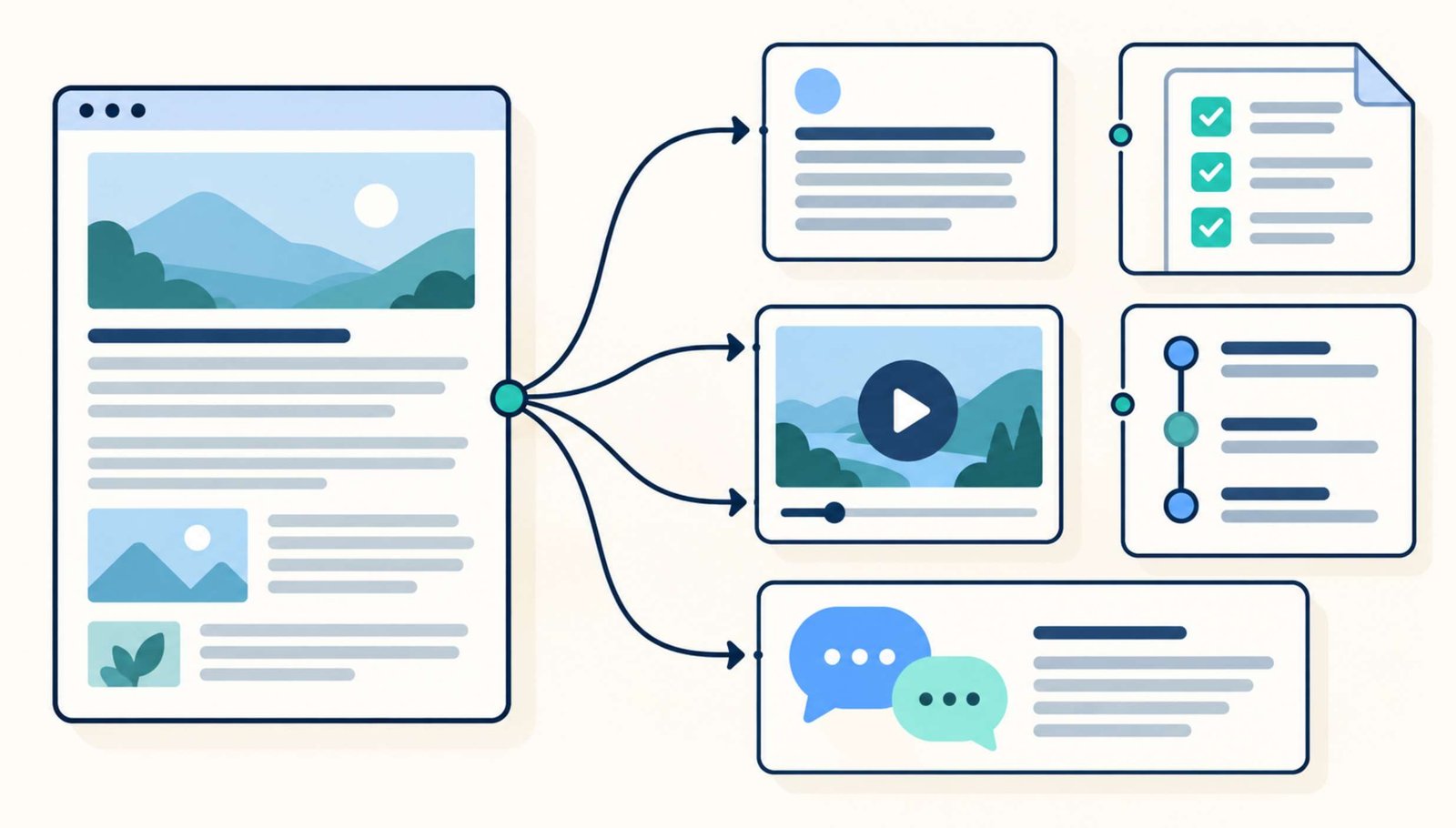
Publishing a blog article takes research, writing, editing, and often several rounds of checking. Sharing it once with a caption that says “New post is live” leaves much of that work unexplored.
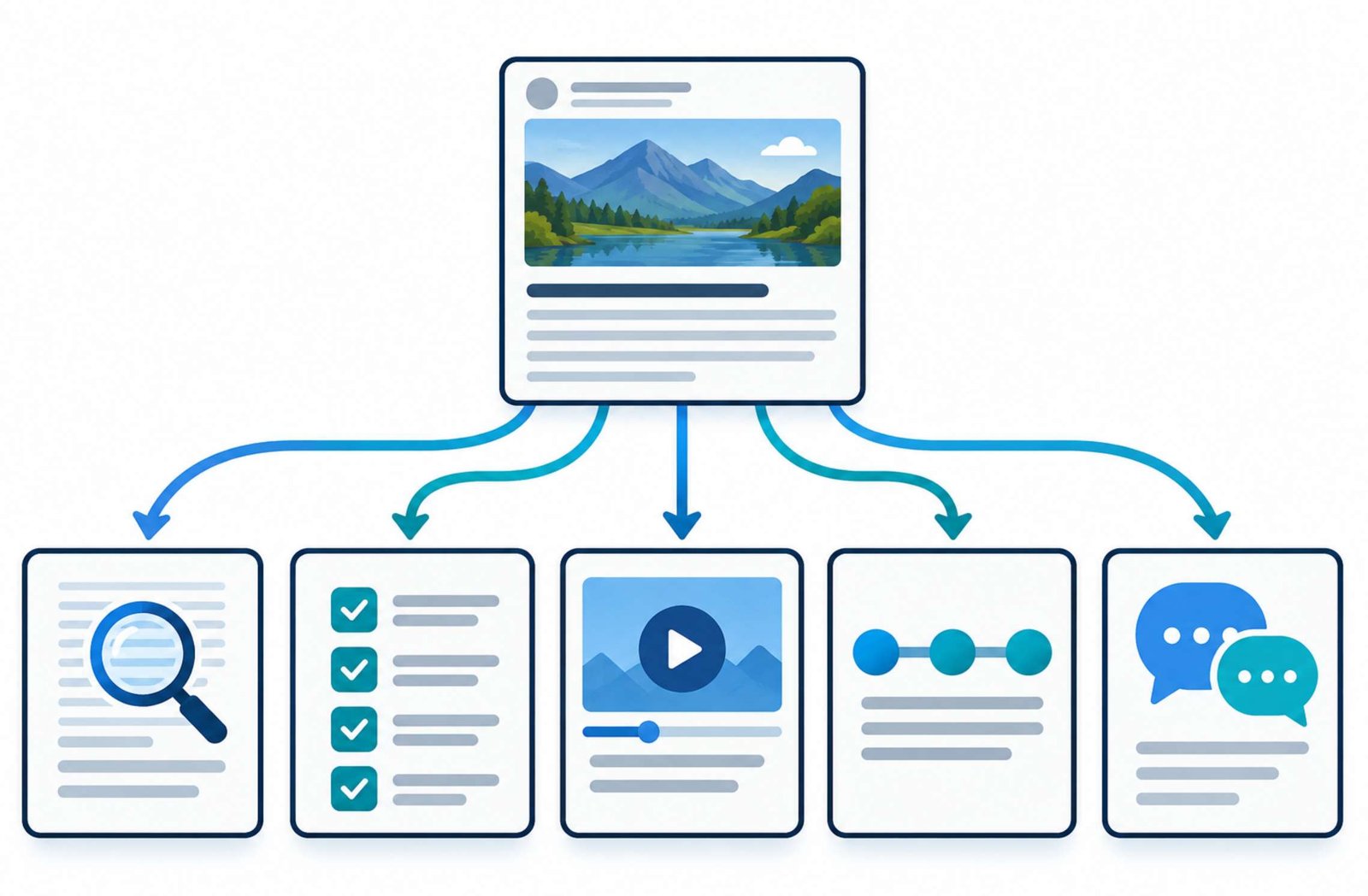
A detailed article usually answers several smaller questions. Each question can become a useful social media post with its own purpose: explaining a mistake, offering a checklist, demonstrating a concept, or starting a relevant discussion.
The challenge is choosing those smaller ideas carefully. Five slightly different announcements still give readers essentially the same message.
This guide shows how to build five distinct posts from one article. The worked example uses a WordPress backup tutorial, but the process also applies to software guides, educational articles, and other practical blog content.
The sample captions and publishing schedule are editorial examples. They are not results from a tested campaign or a promise of increased reach.
1. Choose an Article with Several Useful Takeaways
Start with an article that solves a clear reader problem.
For this example, the source article explains how to back up a WordPress website and test whether it can be restored.
Its main reader is a blogger who wants a practical recovery plan but may be unfamiliar with databases, remote storage, or staging sites.
Before writing social posts, summarize the article in one sentence:
Help a WordPress blogger create a usable backup and check recovery without overwriting the live website.
That sentence gives the content a consistent purpose. It also helps you reject ideas that sound interesting but belong to a different topic.
Next, identify sections that make sense on their own. Look for:
- A common misunderstanding.
- A short sequence of actions.
- A concept that benefits from a visual explanation.
- A decision with a concrete consequence.
- A question readers can answer from experience.
If an article contains only one substantial idea, make one or two strong posts. The number of useful takeaways should determine the amount of content you produce.
2. Map Each Takeaway to a Different Job
Create a small planning table before opening a design tool.
Here is the content map for the backup tutorial:
| Source idea | Social format | Reader benefit |
|---|---|---|
| A backup can be inaccessible when the hosting account is unavailable | Short text post | Recognize a weakness in the current setup |
| A recovery plan needs several basic checks | Checklist document | Review the setup systematically |
| Files and a database serve different purposes | Short explanatory video | Understand what must be saved |
| Restoring an older backup can remove newer work | Hypothetical scenario | Understand a recovery decision |
| Readers may know how to create backups but struggle with testing | Discussion post | Identify the next useful explanation |
This table prevents every caption from becoming a summary of the entire article.
Give each post a primary job. A checklist should help someone check something. A scenario should make a consequence easier to understand. A discussion question should give people a specific subject to respond to.
You can include a link where it helps, but the post should offer something useful before the click.
3. Post One: Explain a Problem in Plain Language
A short text post is a good starting point because it forces you to identify the central idea without relying on graphics.
Use three parts:
- Describe a recognizable situation.
- Explain the practical issue.
- Give the reader one next step.
Example caption:
Your backup plugin says the job finished. Do you know where the copy is stored?
If it exists only inside your hosting account, losing access to that account could also mean losing access to the backup.
Open your backup settings and check the destination. Then sign in to the separate storage location and confirm that a recent copy actually arrived.
The full guide explains how to check backup coverage and test recovery on a separate site.
[Article link]
Replace the bracketed placeholder with the published article’s URL before using the caption.
The opening describes a situation without inventing a personal disaster or claiming that every reader has made a mistake. The post also provides a complete, manageable action.
When writing your own version, keep the claim narrow. “Check where your backup is stored” is clearer than “Your website is probably unsafe.”
4. Post Two: Turn a Process into a Short Checklist
A checklist works when the source article contains a sequence readers can follow or a set of conditions they can verify.
For this example, create a six-page document:
| Page | Suggested text |
|---|---|
| 1 | Could you recover your WordPress blog? Five checks before you need a backup. |
| 2 | Check the contents. Confirm that your plan covers the database and necessary website files. |
| 3 | Check the destination. Keep a copy you can access independently of the hosting account. |
| 4 | Check the date. Decide whether you could recreate the work added since that backup. |
| 5 | Check recovery. Restore the saved copy in an isolated test environment. |
| 6 | Record the result. Note the backup date, test date, and anything that failed. |
Use one main idea per page. A reader should not need to zoom in to understand the instruction.
For LinkedIn, you can upload a PDF as a document post. Add a descriptive document title and a caption explaining who it is for. LinkedIn’s document upload guidance describes the supported workflow.
Review the PDF before publishing. LinkedIn states that you can edit the post description afterward, but you cannot replace or edit the document inside the existing post.
Example caption:
A backup routine becomes easier to review when you ask five specific questions: what was saved, where it is stored, how recent it is, whether it restores, and what the test revealed.
This checklist walks through those questions for a small WordPress blog.
The article includes the detailed backup and restore workflow: [Article link]
Six pages are an editorial choice for this example. Add or remove pages according to the explanation, rather than trying to meet an assumed algorithm preference.
5. Post Three: Explain One Concept in a Short Video
Choose a concept that becomes clearer when someone can see its parts.
For the backup article, that concept is the difference between website files and the database. WordPress explains that a typical site needs both for recovery in its backup documentation.
You do not need to record your hosting dashboard. Two simple labeled shapes—a folder and a database cylinder—can support the explanation.
Example narration:
A WordPress backup needs more than your article text.
The database stores information such as posts and settings. Website files include your uploaded images, themes, and plugins.
Saving only one part can leave you without something you need to rebuild the site.
Check what your backup tool includes, then test the saved copy on a separate site. The full guide explains what to verify.
Pair the narration with a simple visual sequence:
- Show the database when discussing posts and settings.
- Show the folder when discussing images, themes, and plugins.
- Bring both into the same backup group.
- End with a separate test-site illustration.
Read the script aloud before editing. Remove sentences that repeat a point already made clearly.
Add accurate captions and review any automatically generated text. The W3C’s caption guidance explains that captions convey speech and relevant non-speech audio information.
If you use a conceptual illustration, present it as an explanation. Do not make it look like evidence that a real restoration was completed.
6. Post Four: Show a Decision Through a Hypothetical Scenario
Some ideas are easier to understand through a timeline than a definition.
An older backup can be usable while still being the wrong recovery point for work created afterward. WordPress notes that restoring a database returns it to the backed-up state in its database recovery instructions.
Example caption:
Imagine this sequence:
Monday: You create a backup.
Tuesday: You publish two articles.
Thursday: You restore Monday’s database.
The restored database will not contain Tuesday’s articles. A rollback does not automatically merge newer work into the older copy.
Before a real rollback, identify what changed after the backup and preserve the current state separately when possible.
This is why choosing a recovery point matters as much as having a backup.
The word “imagine” makes the example’s status clear. It does not pretend to describe a client project or a personal experience.
A small timeline graphic could support the caption, but it is optional. The example already works as text.
This format transfers well to other topics. An image optimization article could show how resizing an image too aggressively affects later use. A software tutorial could show what changes when a user selects one export setting instead of another.
Keep each scenario focused on one decision.
7. Post Five: Ask a Question That Can Improve Your Content
A discussion post should help you understand readers more precisely.
A broad question such as “What do you think?” gives people little direction. A specific question makes it easier to provide a useful answer.
Example caption:
Which part of a WordPress backup routine is least clear to you?
• Choosing what to include
• Finding the stored copy
• Deciding how often to back up
• Testing a restoreThe step you find confusing would make a useful topic for a follow-up walkthrough.
Use a question like this when you intend to read and respond to the answers.
If someone describes a problem, ask for the relevant context before recommending a fix. There is no need for them to share account credentials or private backup files in a public comment.
A single response can reveal a valuable explanation you have missed. It does not establish how common the problem is across your whole audience.
Keep a note of recurring questions. They can guide an article update, an additional illustration, or the next tutorial.
8. Adapt the Content to the Place You Publish It
Start with the platform where you already have relevant readers. You do not need to create accounts on several networks to use this workflow.
Then adapt the presentation to the available format.
A text post needs a clear opening and readable paragraphs. A document needs page-by-page progression. A video needs a script that sounds natural when spoken.
Keep the main claim consistent across formats, but change the amount of explanation and the supporting visual.
Before publishing, check:
- Does the post make sense without the original article?
- Can someone read the visual comfortably on a phone?
- Does the opening identify a real problem or useful outcome?
- Does the next step match what the destination provides?
- Is the link available and usable in the chosen placement?
Add descriptive alternative text to images where the platform supports it. LinkedIn provides an alt-text option for shared images, documented in its accessibility instructions.
For a simple graphic showing a website connected to separate storage, suitable alt text might be:
Website backup copied from a hosting server to a separate cloud storage account.
Keep essential instructions in accessible text as well, rather than relying entirely on small lettering inside a graphic.
9. Space the Posts Around Your Normal Publishing Rhythm
Prepare the five drafts together, then decide which ones deserve publication.
Here is an example sequence:
| Publishing slot | Post | Reason for its position |
|---|---|---|
| First | Problem explanation | Introduces a recognizable concern |
| Second | Checklist | Gives interested readers a practical review |
| Third | Short video | Explains a concept that supports the checklist |
| Fourth | Hypothetical scenario | Adds a consequence worth understanding |
| Fifth | Discussion question | Invites input for follow-up material |
These slots can fit across one or several weeks. They are not a recommended posting frequency for every account.
If your usual schedule is two useful posts per week, there is no need to publish five in five days. You can also mix the series with other relevant subjects.
Review each draft shortly before publishing. A product update or correction to the article may affect a queued post.
If two drafts still feel repetitive, combine them or drop the weaker one. The purpose is to make the article’s useful ideas easier to encounter and understand.
10. Review Each Post Against Its Purpose
Different posts should not automatically be judged by the same number.
For the example series:
| Post | Useful evidence to review |
|---|---|
| Problem explanation | Relevant replies and visits to the linked guide |
| Checklist | Saves or downloads where reported, plus questions about using it |
| Video | Available viewing metrics and signs that the explanation was understood |
| Scenario | Comments that reveal understanding or remaining confusion |
| Discussion | Specific answers that help you plan follow-up content |
Platform metrics have different definitions. A video view, a document impression, and a website session do not represent identical behavior.
For posts containing article links, use consistent UTM labels. Keep the campaign name the same and give each post a distinct utm_content value, such as:
backup_problembackup_checklistbackup_video
Google documents how these labels identify campaigns and content variations in its campaign URL guide.
Only tag an actual clickable destination. A URL printed inside a picture is not a substitute for a usable link.
Record what the results suggest without claiming more than they show. “The checklist generated questions about testing backups” is a useful observation. “The platform always rewards checklists” is a much broader claim that this exercise cannot establish.
Choose one article with several clear takeaways, draft the strongest two formats first, and expand the series when another format adds something useful. Keep a record of reader questions alongside the numbers so your next round of content responds to what people actually need.